
Publishing and Synchronizing Layouts
On this page
4.9 Publishing and Synchronizing Layouts
Delivery includes artwork, data dependencies, and access policies. Use .skdCard distribution for a small deployment or database publishing with .clcf for centrally maintained clients. Record each workstation's mode. Synchronization does not install databases, photos, interfaces, fonts, or printer drivers.
4.9.1 Saving and Publishing
Before release, check dimensions, sides, long text, photos, codes, connections, SQL, components, reports, and policies. Remove temporary demonstration settings. Record human-readable changes separately from the synchronization table's numeric version. Retain the previous known-good release, nominate a test client, and identify release/rollback owners.
File Delivery
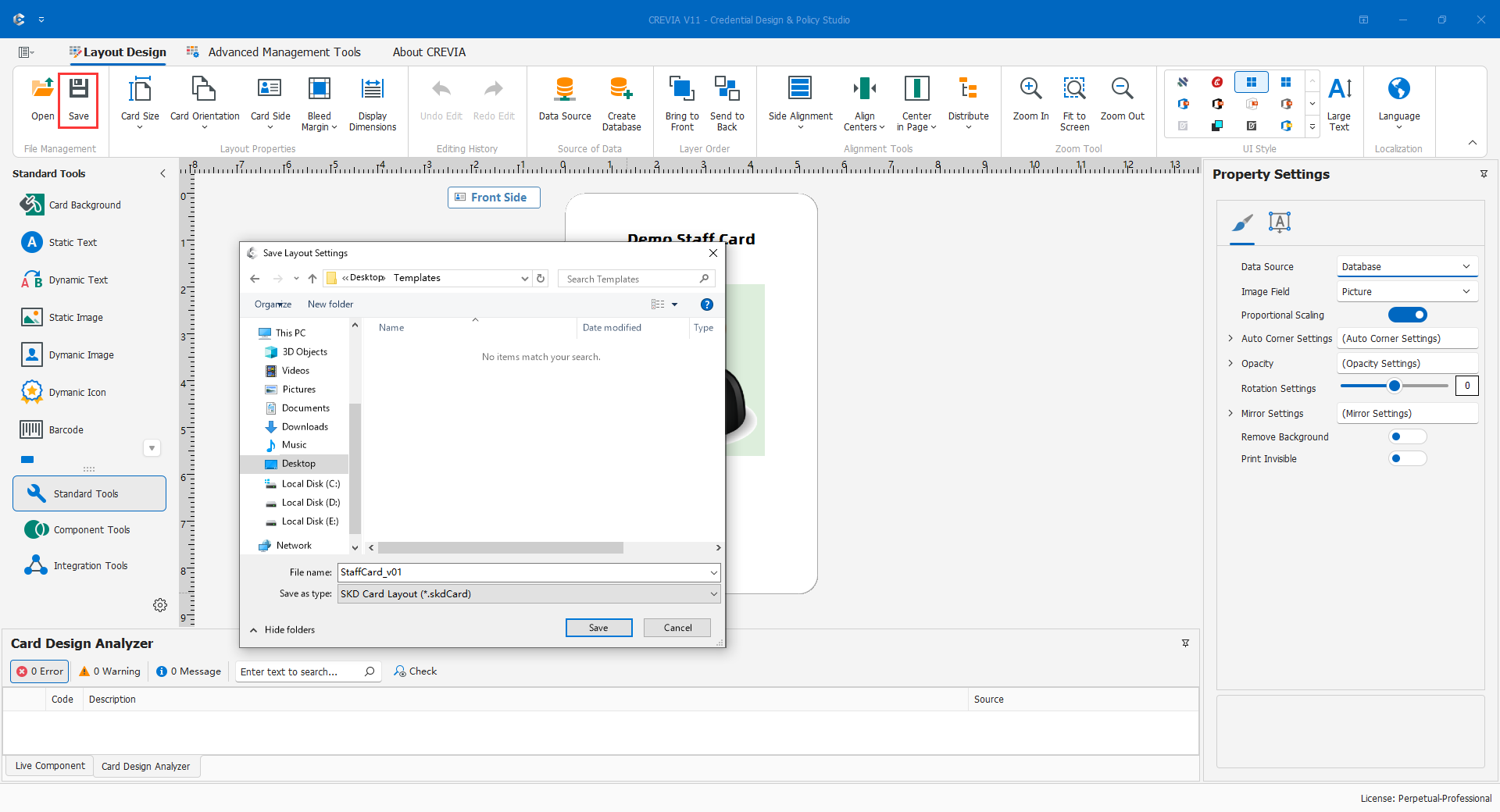
With synchronization disabled, Save to .skdCard, reopen and inspect, and deliver it with required resources to test COC. Under the actual role, validate data, photos, interfaces, reports, and scope. Complete one test print and scan before setting the default and distributing. A layout update must not replace the production personnel database with an empty new database.
Database Publishing
Configure mappings and save synchronization settings first, then use main-window Save. With synchronization enabled, Save writes the layout to the configured database and reports that result instead of opening an ordinary .skdCard Save dialog. This does not also produce a local copy. Preserve rollback designs beforehand, fetch the release on the test client, and verify the change before wider rollout.
4.9.2 Setting a Default Layout
Set the default on each target COC workstation, not merely by saving in CDPS. Open the production .skdCard, verify data/permissions/output, choose Set as Default, ensure it is not a temporary layout, restart, and test the intended login. Record each client's result.
Mode change: manually opening .skdCard and setting it as default closes that client's automatic synchronization mode. Opening a test file just to inspect it is different from changing its startup strategy.
4.9.3 Synchronization Settings
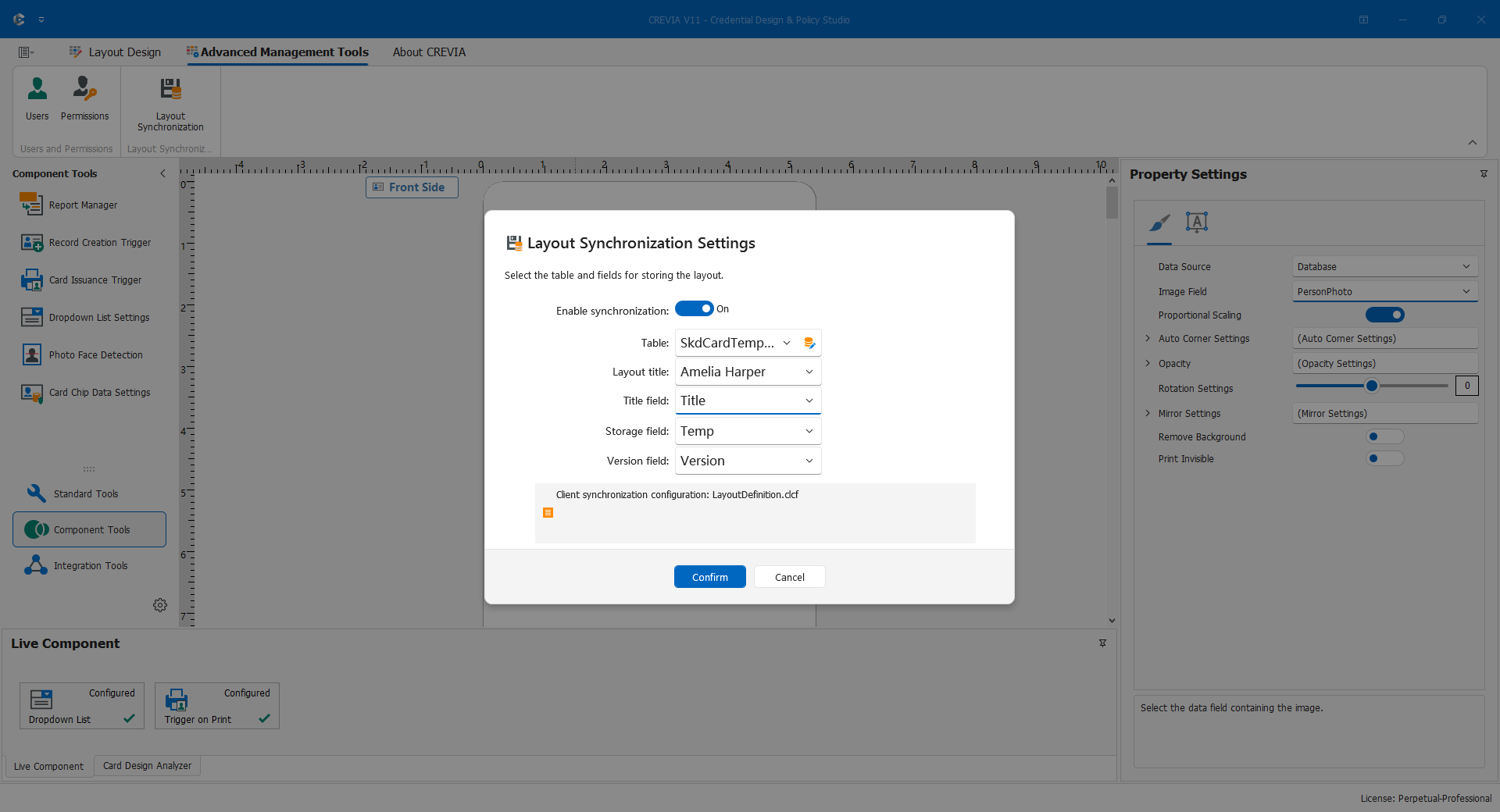
Synchronization requires Advanced or Professional capabilities and a working database connection. Prepare a dedicated layout-storage table and permissions. Do not mix layout bytes into a personnel photo field.
| Setting | Meaning |
|---|---|
| Enable synchronization | Activates the publishing scheme; disabled mappings are not connection errors. |
| Table | The prepared storage table, or a table created through the tool when authorized and safe. |
| Layout title | A stable identifier, such as Staff Card; do not reuse it for unrelated projects. |
| Title field | A text column for the title, not a person's name. |
| Storage field | Binary layout bytes, not a filename/path. |
| Version field | A numeric layout version, not a record primary key or date-description text. |
The tool's default example table is LayoutStorage, with LayoutName, LayoutFile, Version, and primary key ID. Existing schemas use their actual mappings. The three mappings must be distinct, and ID is not the version field.
- Validate the target table and publisher write/client read permissions.
- Enable synchronization and select the table; create one only after confirming environment and permission.
- Supply a stable title and correctly typed text/binary/numeric mappings.
- Save
LayoutDefinition.clcf. This saves lookup configuration, not current artwork. - Return to the main window and Save to publish the layout to the database.
- Test the first fetch in COC, publish a recognizable modification, and verify an update before rollout.
Distinguish configuration-file failure from database-publish failure. Check mappings/types/file rights for the former and licensing/connection/table/write rights for the latter. Do not recreate tables merely because a client has not changed.
Clients retrieve newer versions; decreasing a version is not reliable rollback. Republish a verified older design through a controlled release with a retrievable newer version, test it, and retain failed-version evidence.
4.9.4 The LayoutDefinition.clcf File
The file stores target, title, mappings, and connection settings. It tells the client where to obtain a layout; it is not interchangeable with .skdCard.
CDPS retains design-side configuration in CDPSDefault. Deliver the file saved through settings after checking project and test/production environment. COC retains opened configuration in CocDefaultTemplate and downloaded layouts in Template. Personnel data still comes from the layout's data source, not from .clcf.
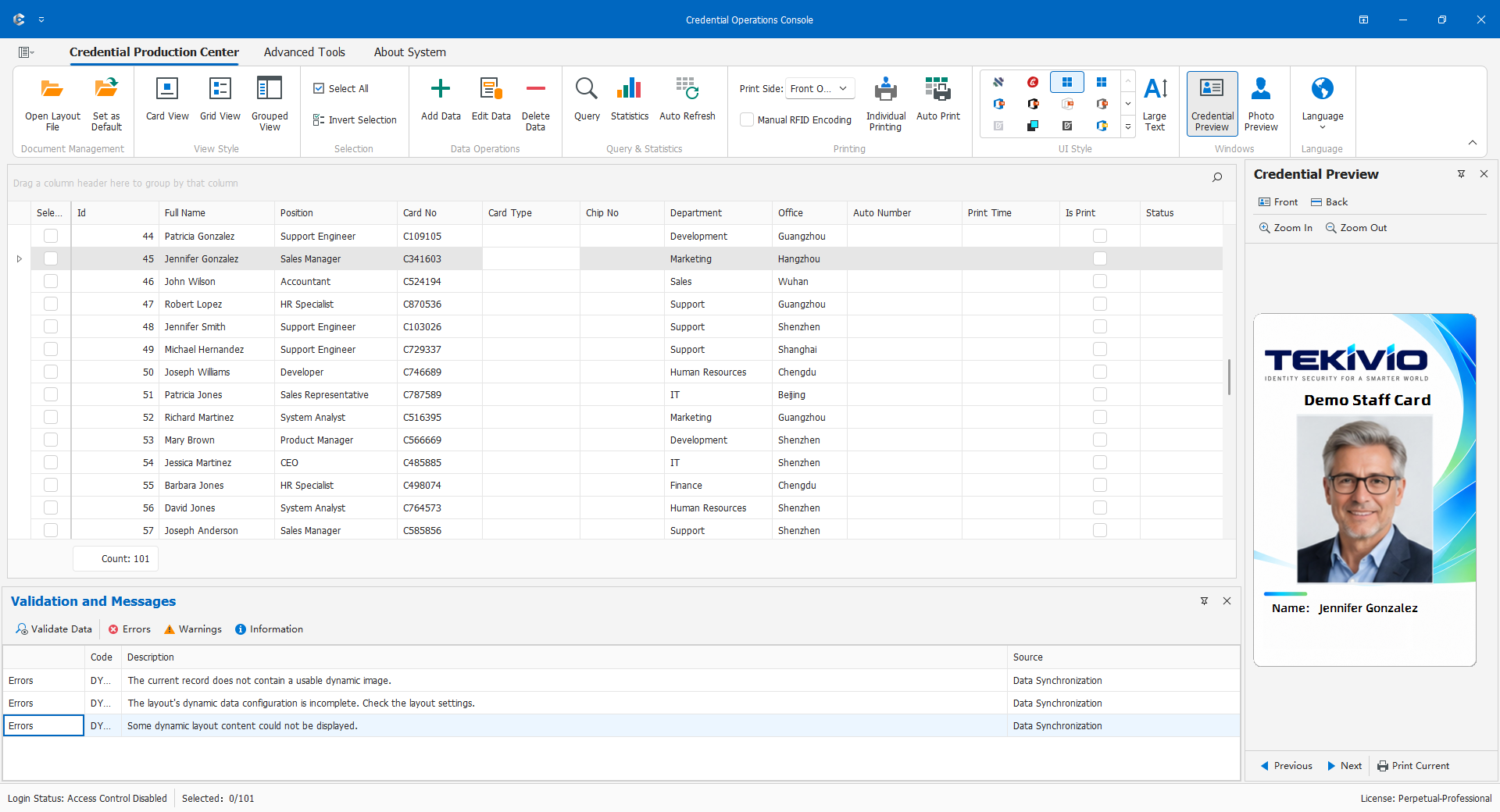
Initialize a test COC with the supplied configuration, verify publishing-database access, log in under the layout's policy, and check scope, dynamic objects, reports, and a test print. Publish a recognizable update and verify actual client changes, not just the title. If absent, check publish success, matching title, connectivity, and a newer version.
Figure 4.9-3. Show opening clcf in COC, the resulting demonstration card, and a small before/after update with a verifiable feature. Distinguish configuration from downloaded layouts without opening encrypted contents.
Treat configuration as restricted internal connection information even when encrypted. Redeliver and verify after connection/mapping changes. To leave synchronization, open and verify a usable .skdCard, then Set as Default on each client. Disabling synchronization in CDPS alone does not change all clients.
Pre-Release Checklist
Record each result and mark unused functions "Not applicable" rather than assuming that an accessible settings window proves success.
- Layout and backup: identifiable version, recoverable previous version, and preserved sides/objects/settings after reopening.
- Display and codes: actual dimensions, long/NULL values, correctly owned photos, and physical scanner readback.
- Data and scope: correct environment, keys/outputs, and separately verified included/excluded records under target users.
- Components: saved and reread sample values, verified interfaces/triggers, and known failure/retry behavior.
- Reports: templates persist with the whole layout and correct users, data, pagination, and sensitive-field scope.
- Identity and permissions: appropriate license/roles, changed default credentials, and no unnecessary test accounts.
- Workstation dependencies: accessible data/photos/interfaces, fonts, drivers, and a successful single test print.
- Delivery and updates: recorded file/sync mode, correct startup default, first retrieval and subsequent update tested.
- Handover and rollback: owners, locations, dependencies, release results, and recovery steps recorded; business data untouched by the design update.