Personnel Data Management
On this page
5.3 Personnel Data Management
Adding, editing, and deleting affect business data and require appropriate roles. Confirm database, identity, and query scope, and back up before significant batch changes.
5.3.1 Adding Records
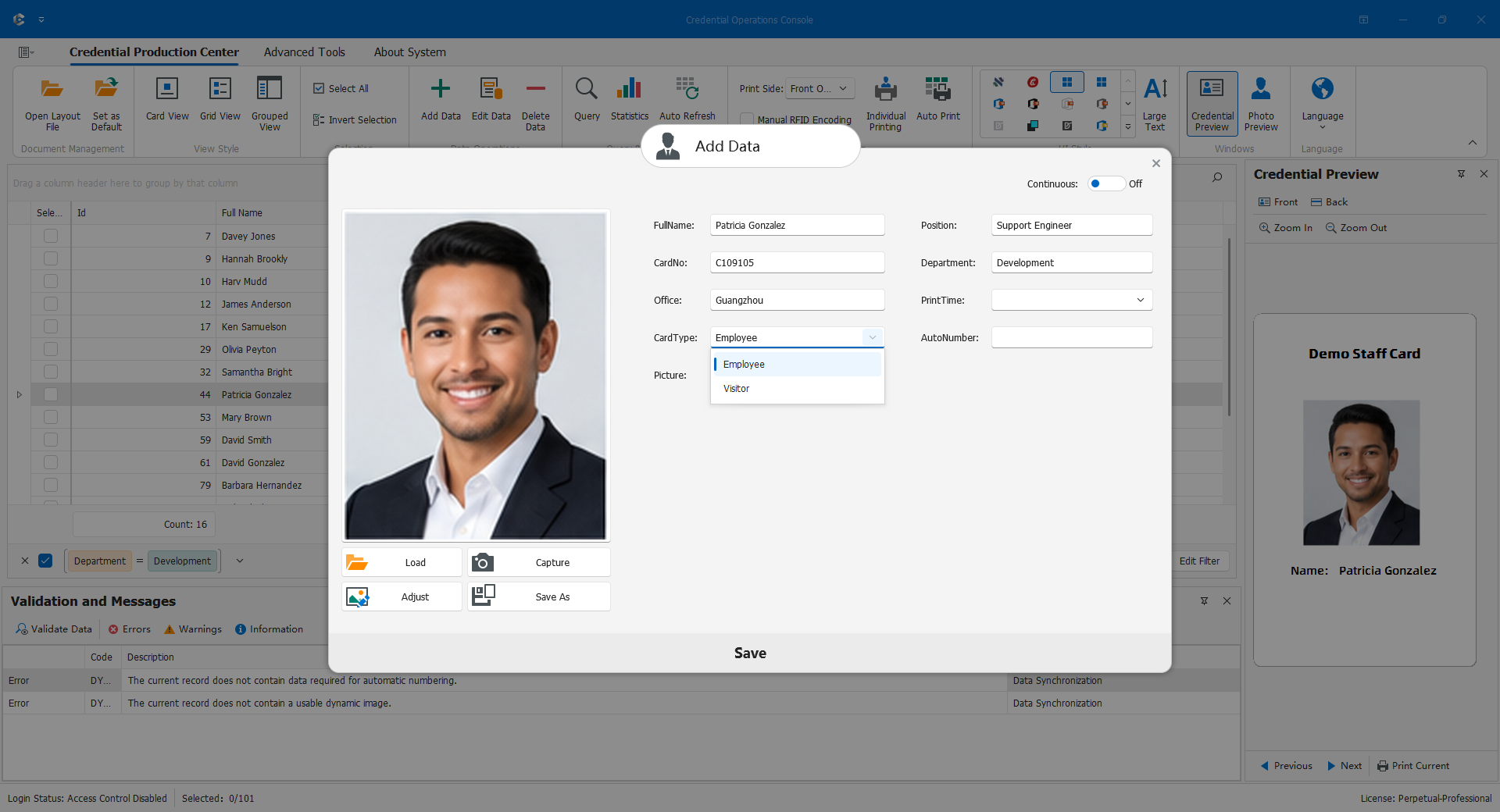
- Search the unique business identifier first to distinguish a new person from a supplement or reprint.
- Open Add Data and complete the actual project fields in order.
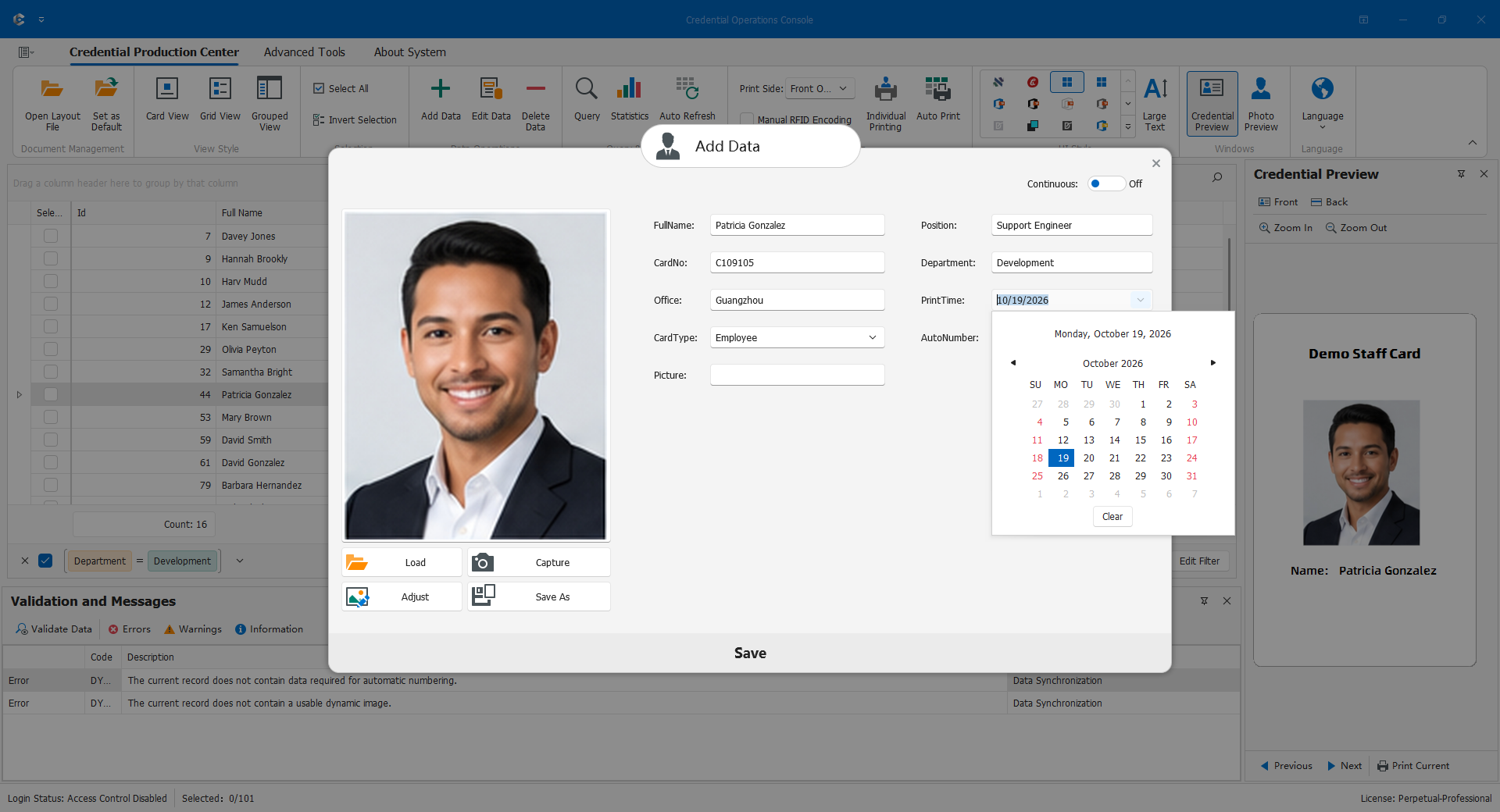
- Choose related values from lists, use valid dates, preserve leading zeros, and respect numbering/trigger-managed values.
- Load or capture an appropriate photo and check required contents.
- Save, locate the person again, and verify name, number, category, and photo.
Newly saved data may not satisfy current group SQL or interface conditions. Check the save result and scope instead of adding it again. Interfaces and triggers may also create related business effects.
5.3.2 Editing Records
Locate and focus the person, verify the unique identifier, open Edit Data, check the form's owner, change approved fields/photo, save, and reread. Editing targets the focused record, not some other checked person.
Use legitimate reference options rather than interchanging names and IDs. Missing locating keys cause rejection: administrators must repair SQL/schema, not add a duplicate person. The main list is read-oriented; expandable long text is not a save-to-database entry point. Use the maintenance form.
Changing identifiers can affect photo filenames, codes, and external identities. For an issued person, also follow the replacement-card policy and old-card status rules.
5.3.3 Deleting Records
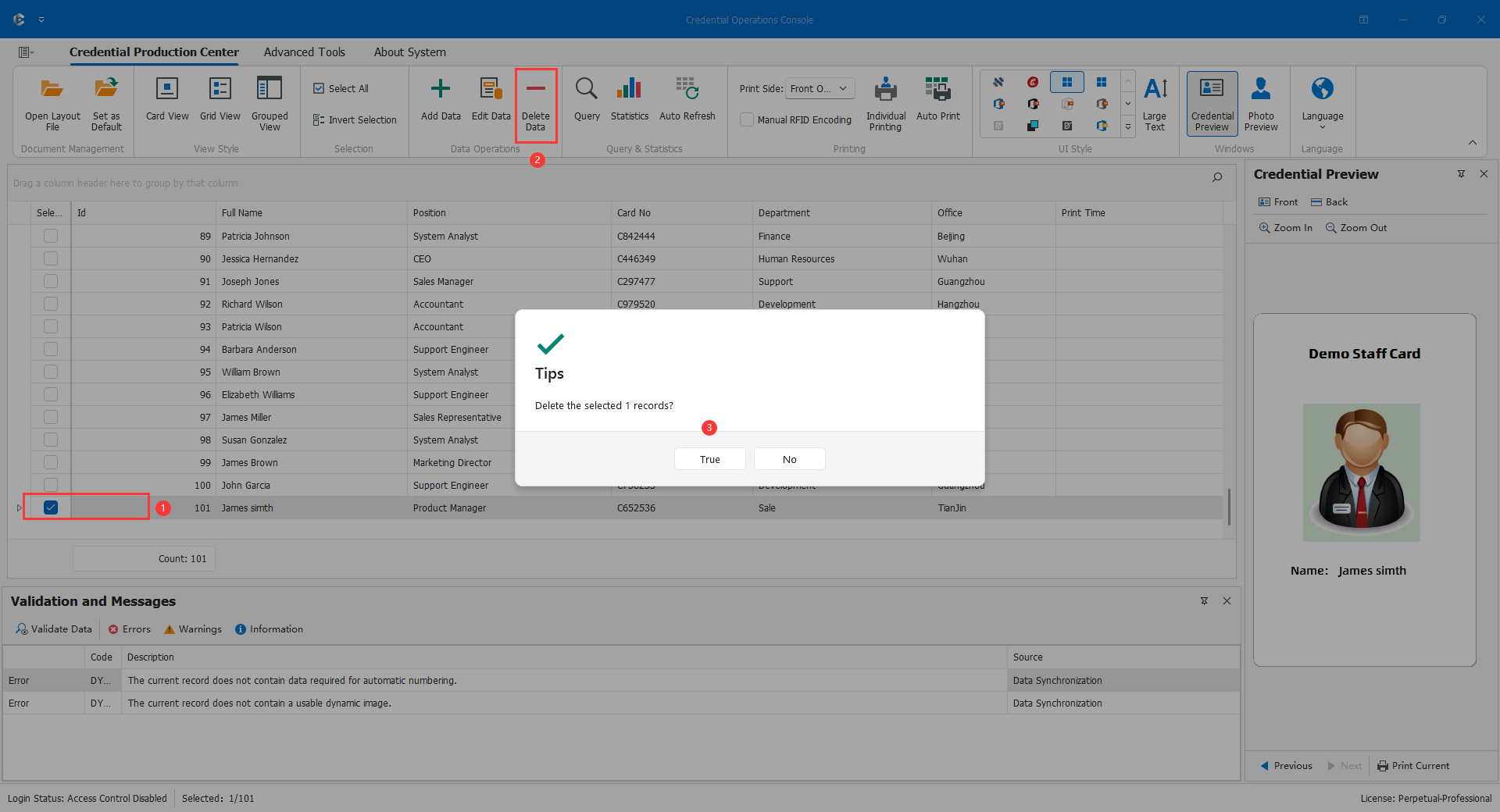
Deletion is not hiding a row or undoing printing. The implementation identifies a main table from the query and can process related records, so verify authorization and backups first.
Stop automatic/batch tasks, inspect all loaded selections, clear unintended checks, and use filters/groups cautiously. Read the deletion count and cancel if uncertain. After confirmation, wait for results and query the target and related data again.
Scope warning: deletion collects all checked records in the loaded data table, including rows hidden by current filters. Hiding a row does not uncheck it. Do not apply sequential printing's visible-and-checked rule to deletion.
Stop if keys or deletion targets cannot be resolved. After errors, inspect actual stored results before retrying. Canvas Undo cannot recover deleted personnel; use controlled database restoration.
5.3.4 Related Drop-Down Fields
Numeric foreign keys can display names while storing reference IDs. Select real options, not invented IDs. Preset lists may define indexes, display names, and free-input policy. Administrators must maintain missing reference entries or layout rules; an approximate category is not an acceptable substitute.
Reusing a code changes how history, queries, and symbols are interpreted. Not every JOIN output should become a drop-down: ordinary related names/card numbers retain their own type. Relationship and field type determine the editor, not the mere existence of JOIN.
5.3.5 Checks and Errors
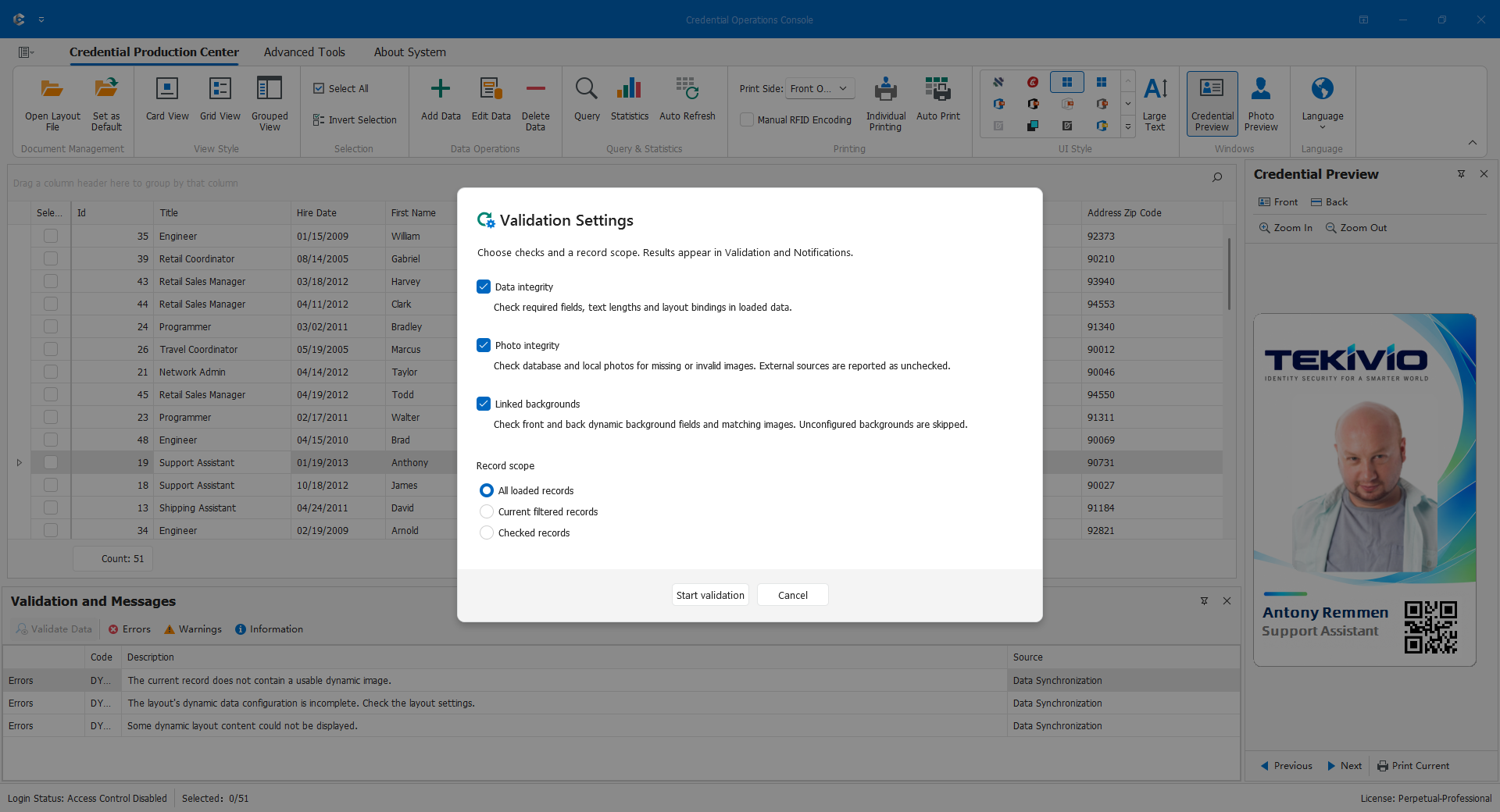
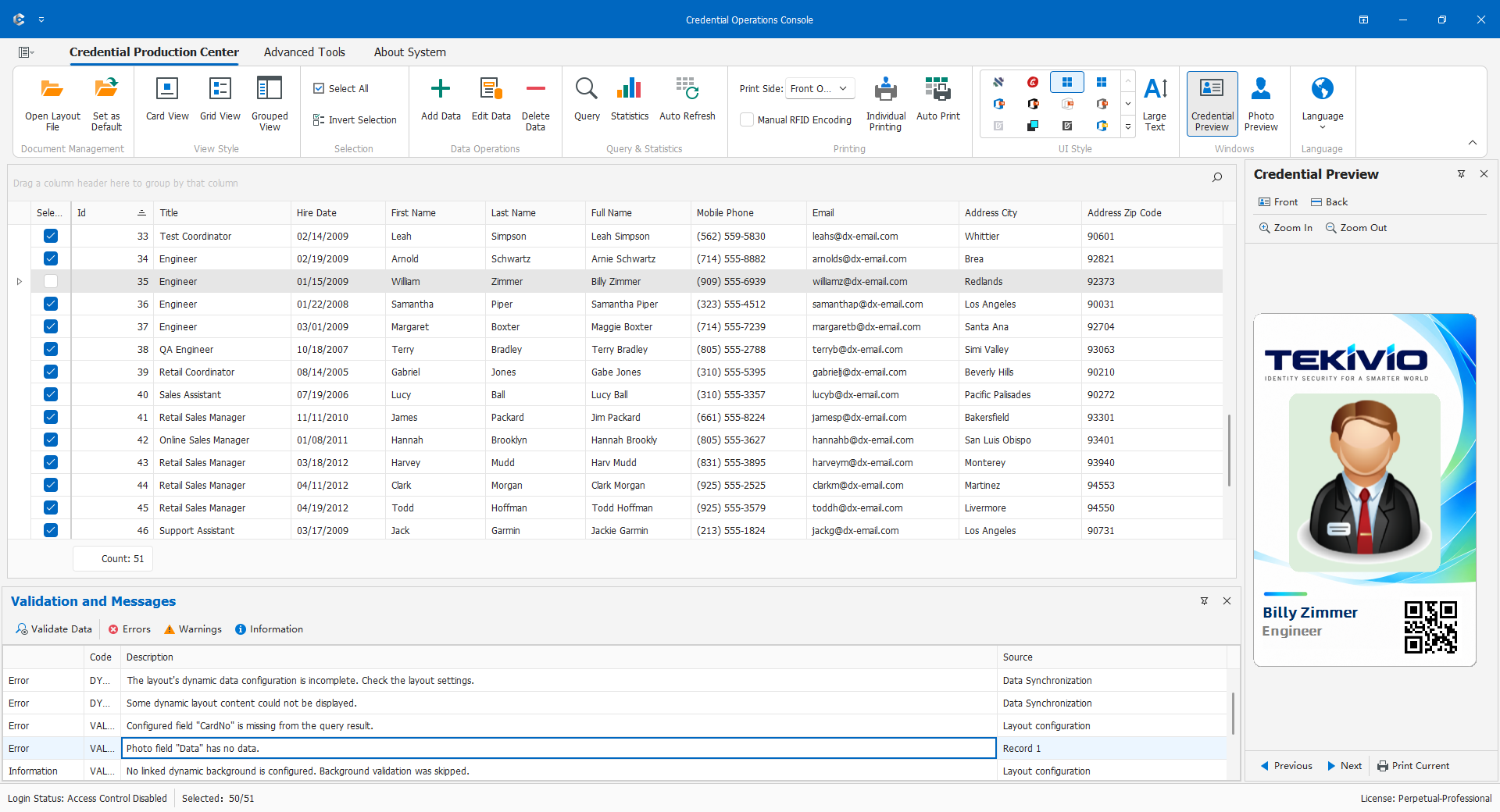
Data checks identify missing/invalid values and business-rule issues but do not verify identity on their own. Confirm rules and scope, run checks, read the issue and record location, repair through Edit, and recheck. Separate cleared issues from remaining ones.
For connectivity, photo recognition, or faulty rules, provide redacted evidence rather than entering false data just to remove warnings. Save failures require checking fields, type, uniqueness, access, and relationships. Administrative account sharing is not a normal remedy. Partial batch failures need reconciliation of successful work before retry.