
Report Design and Management
On this page
4.7 Report Design and Management
Reports produce full-page lists or issuance registers and are designed separately from the card. One layout can hold several templates available to permitted users. Configure main SQL outputs and report licensing first.
4.7.1 Creating a Report
- Open layout reports from the reporting component and create a template, or select an existing one.
- Confirm that the main SQL's field structure is available; repair missing outputs first.
- Set report paper, orientation, and margins independently of card dimensions.
- Add a fixed "Staff List" title and column headings, then bind name, department, and card number in the detail area.
- Adjust widths, heights, and wrapping for long sample contents and printable boundaries.
- Save and validate actual rows and pagination in COC before adding grouping or totals.
The designer receives field structure from main SQL, not a retained set of personnel rows. Visible fields with no real people in design preview do not necessarily indicate a broken source. Verify bindings and run the COC report with demonstration records. Check repeated headers, extra blank pages, and printable widths on multi-page output.
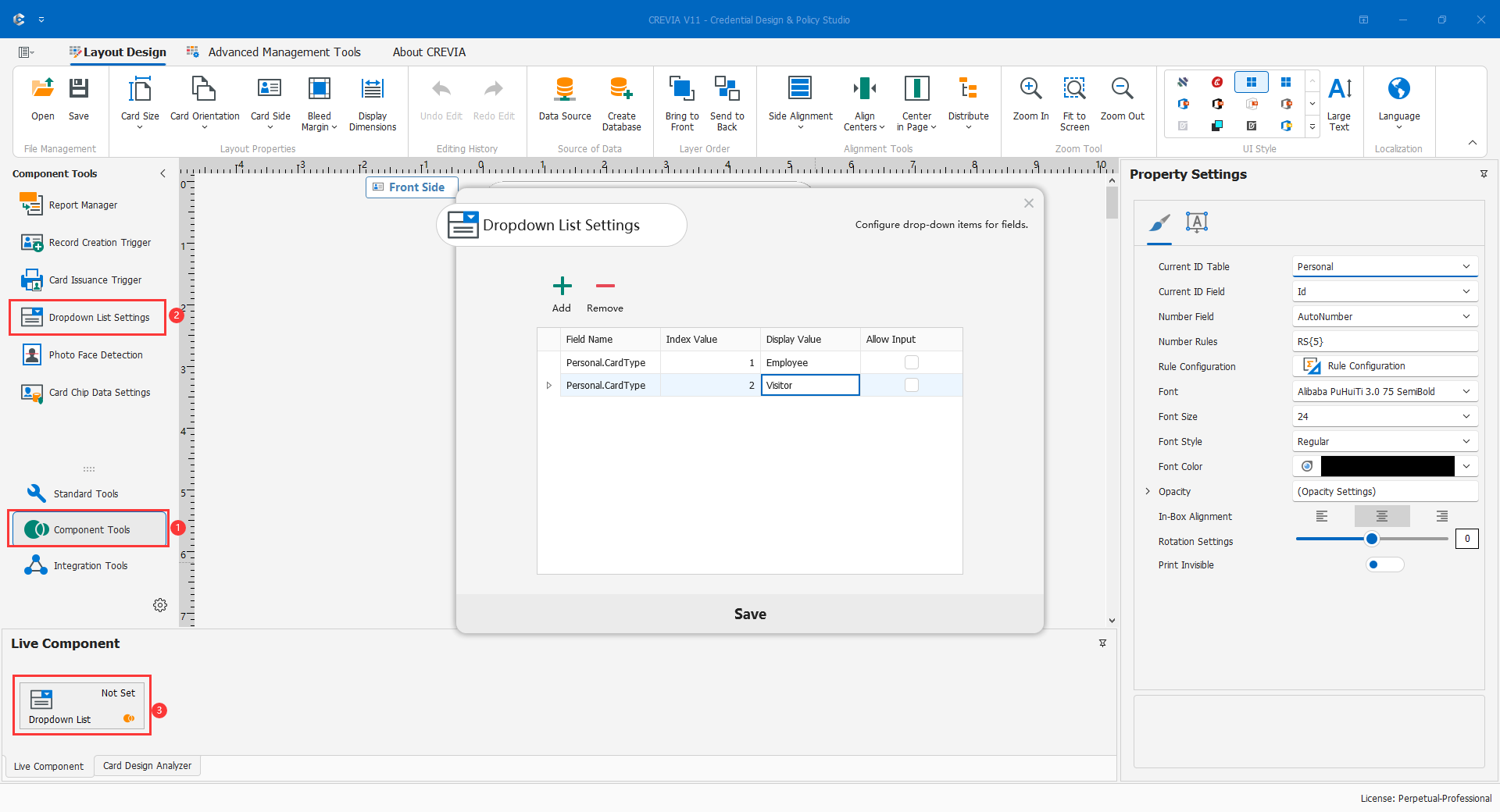
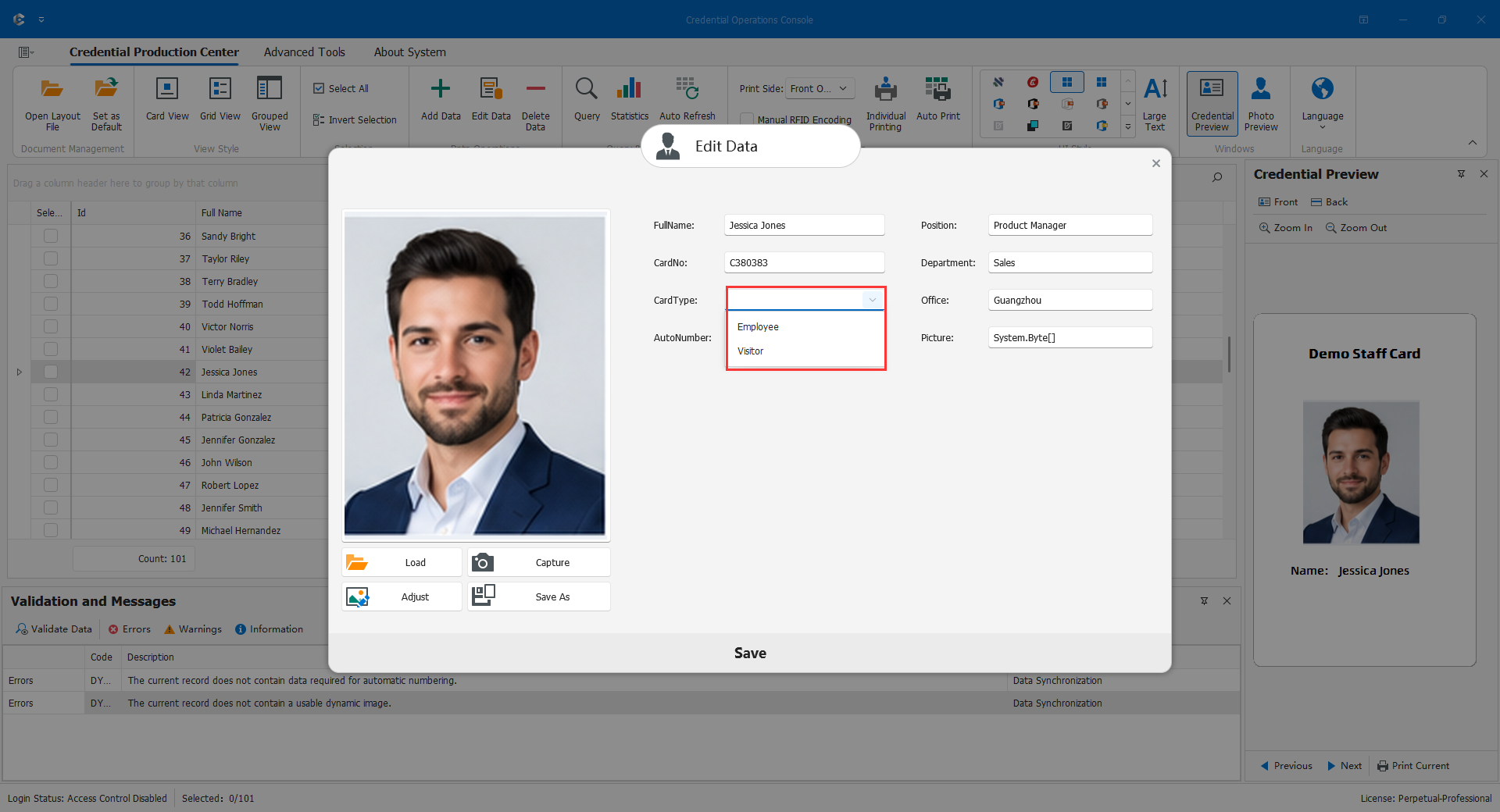
4.7.2 Saving Report Templates
Saving has two levels: store .repx in the current layout's report area, then save or publish the whole credential layout. Both are required for delivery.
- Save from the designer to report storage.
- Enter a meaningful template name such as
StaffList, not a temporary disk path. - With access control, define permitted users and check the target role.
- For a duplicate name, deliberately choose overwrite or another name; retain the previous layout before replacement.
- Reopen from the report list and check design and scope.
- Save
.skdCard, or publish to the database when synchronized. Reopen the delivered layout or fetch it in test COC and confirm persistence.
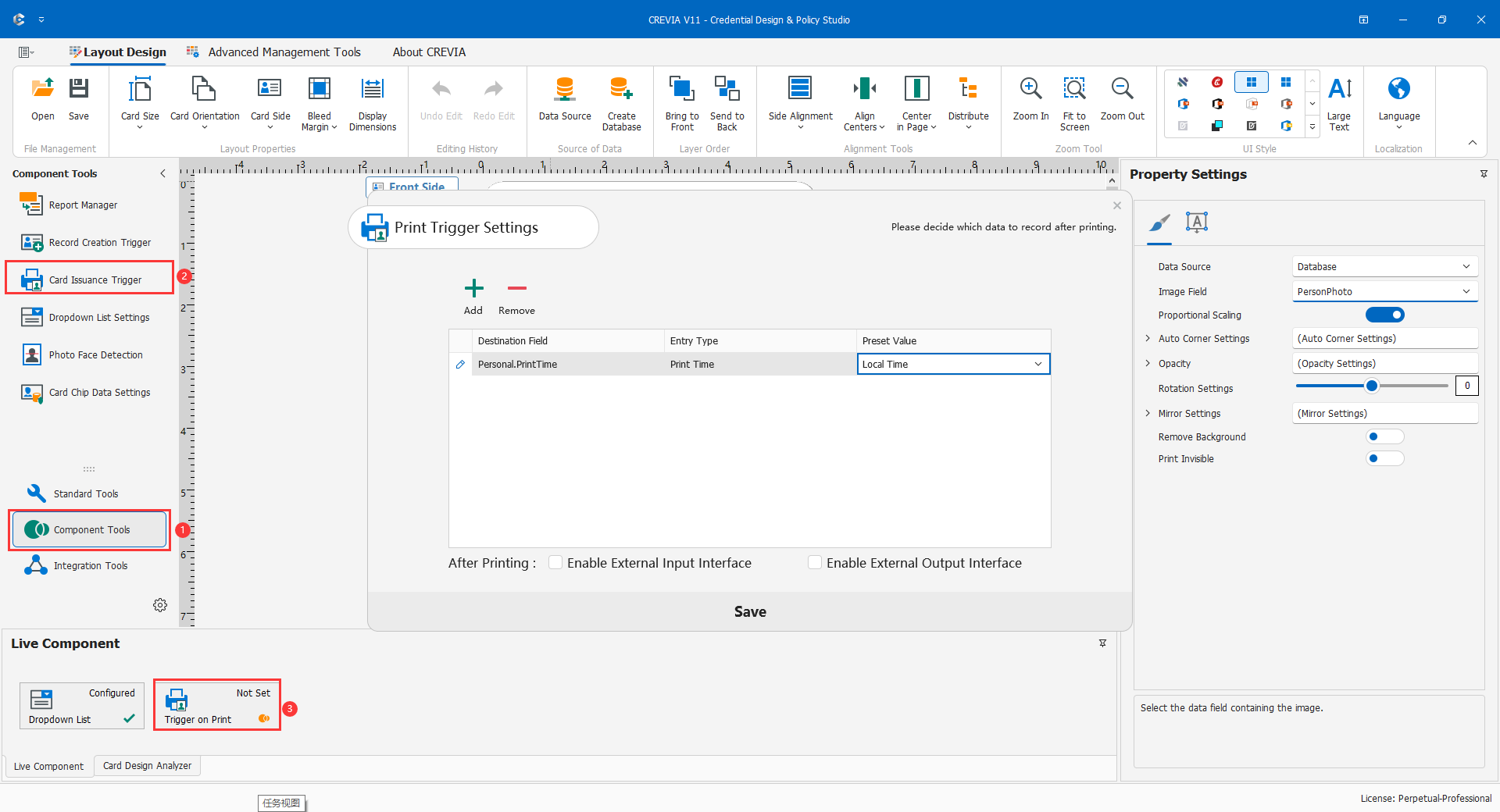
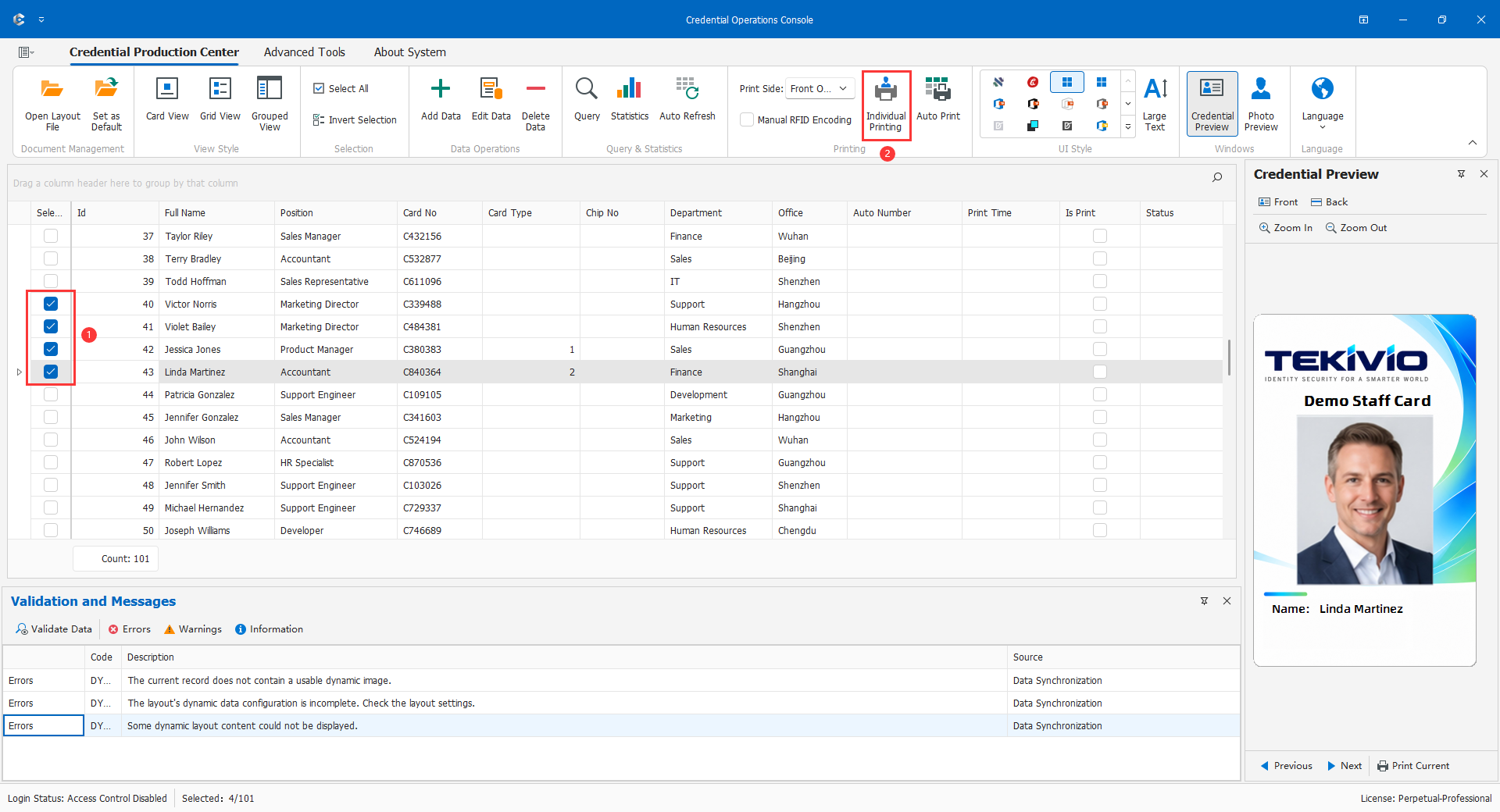
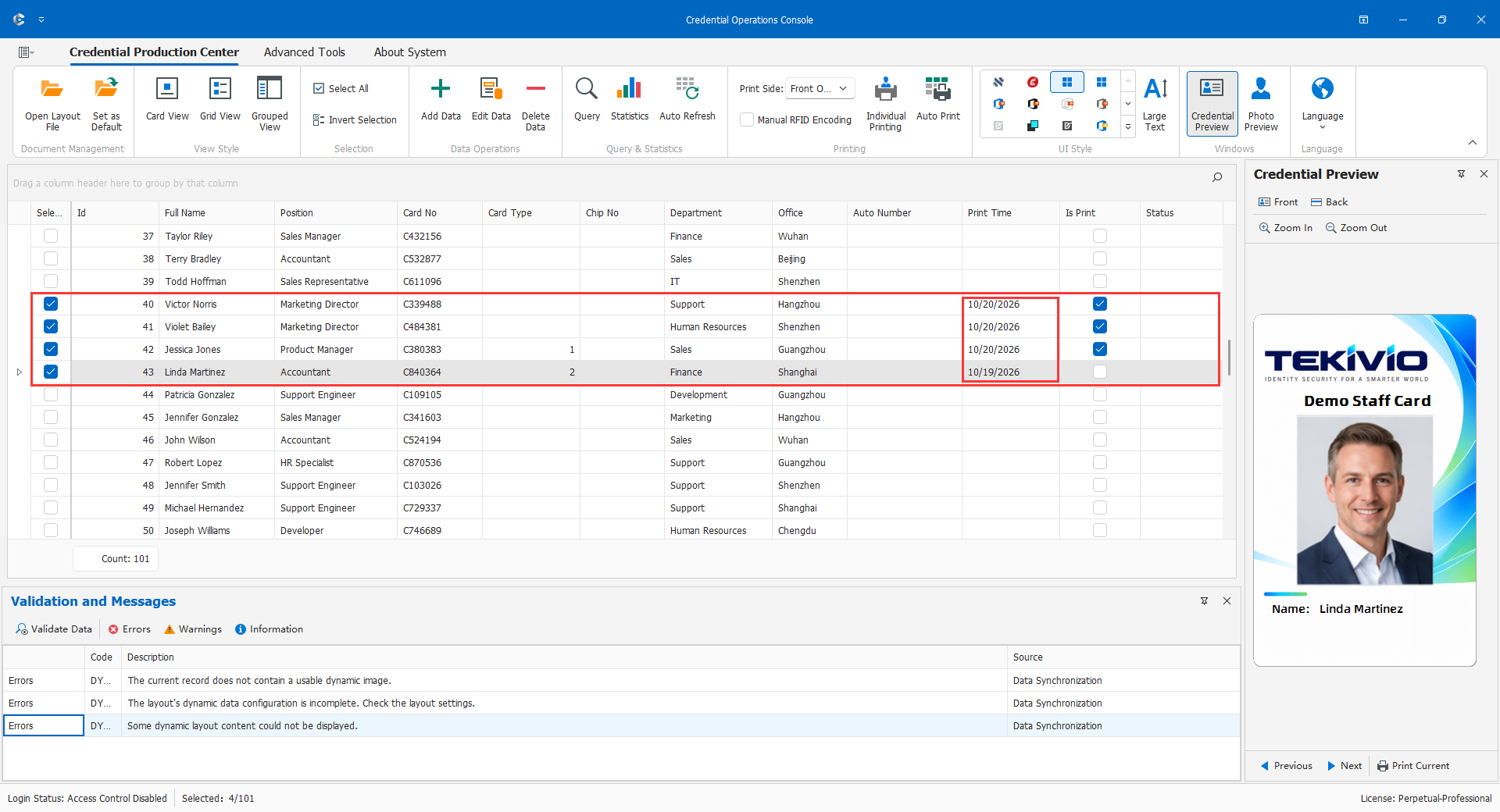
Do not assume the command always opens an independent disk Save dialog. TempReport contains temporary files, not the official backup. Recheck name, bindings, page settings, and users after reopening the correct layout version.
4.7.3 Managing Reports Within a Layout
Use distinct names and scopes for staff lists, issuance registers, and departmental lists, especially when sensitive fields differ. Select and verify a template before editing; overwrite deliberately or use another name for another purpose, then save the entire layout and test in COC.
Before deletion, back up the layout containing the original. Open the target template, delete after checking the confirmation name, verify remaining reports, and save. If an operator still sees the old report, first check whether the new layout reached that client.
Missing fields require checking SQL outputs/aliases, not merely renaming a heading. No design-time people may be a structure/runtime distinction. Old styles may indicate a missing second-level save or the wrong file. A user missing a report may lack its template scope or role permission; do not disable all access control.
Finish by validating purpose, names, persistence, actual data, pagination, and minimum necessary sensitive fields with the target user.