
Browsing and Querying Records
On this page
5.2 Browsing and Querying Records
Understand the allowed SQL scope before sorting, searching, filtering, or grouping. A missing person may be excluded by the interface, group query, relationships, or source itself.
5.2.1 Loading Rules
COC reads the layout's provider, connection, and query, then prepares editors, main photo, and personal layouts. A static layout without a connection/query can legitimately have no personnel data.
Check a known name/number, department, and photo. Distinguish a legitimate empty result from exclusion, and identify whether errors occur during field analysis, query execution, or view setup. Successful reading does not make every output writable: related names, computed values, missing keys, and read-oriented sources can restrict editing.
5.2.2 Main SQL and User Group SQL
Configured group SQL takes precedence as the actual data source; otherwise main SQL is used. It is not simply a filter appended to the main result. Blank group SQL falls back to main SQL, not deny-all.
Operators must not broaden queries to locate unauthorized people. Give administrators included/excluded examples so they can verify group scope, fields, joins, and delivery. Different design/operations results can be intended. Compare layout version, database, user, and group, not just filenames.
5.2.3 Grid View
Use the grid to compare fields and batches. Columns follow SQL outputs and personal layout.
- Switch to Grid View and inspect headings and the current person.
- Click a row and confirm photo/credential previews follow it.
- Adjust widths/order while keeping key identifiers visible.
- Before batch operations, check the actual selection checkboxes; row highlighting is not equivalent.
Images, dates, Booleans, numbers, and long text use different editors. A business checkbox such as Enabled is not the batch-selection checkbox.
5.2.4 Card View
Card View brings one person's fields together for photo/identity comparison. Its initial layout prioritizes the main photo; saved personal settings may change the appearance. Compare the same person between views. This is a data presentation, not a credential print preview, and changing it does not alter the physical design.
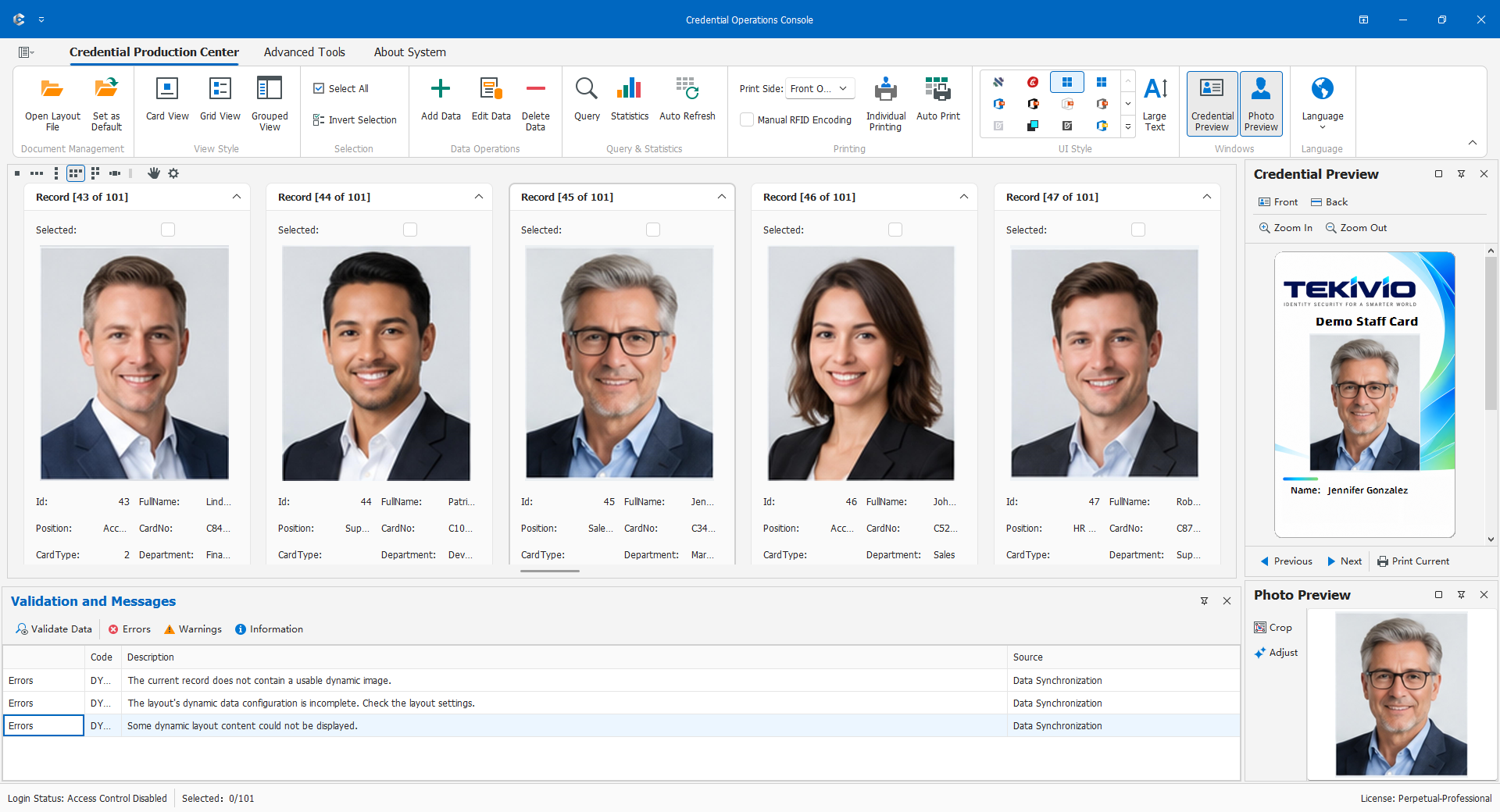
5.2.5 Sorting, Filtering, Searching, and Grouping
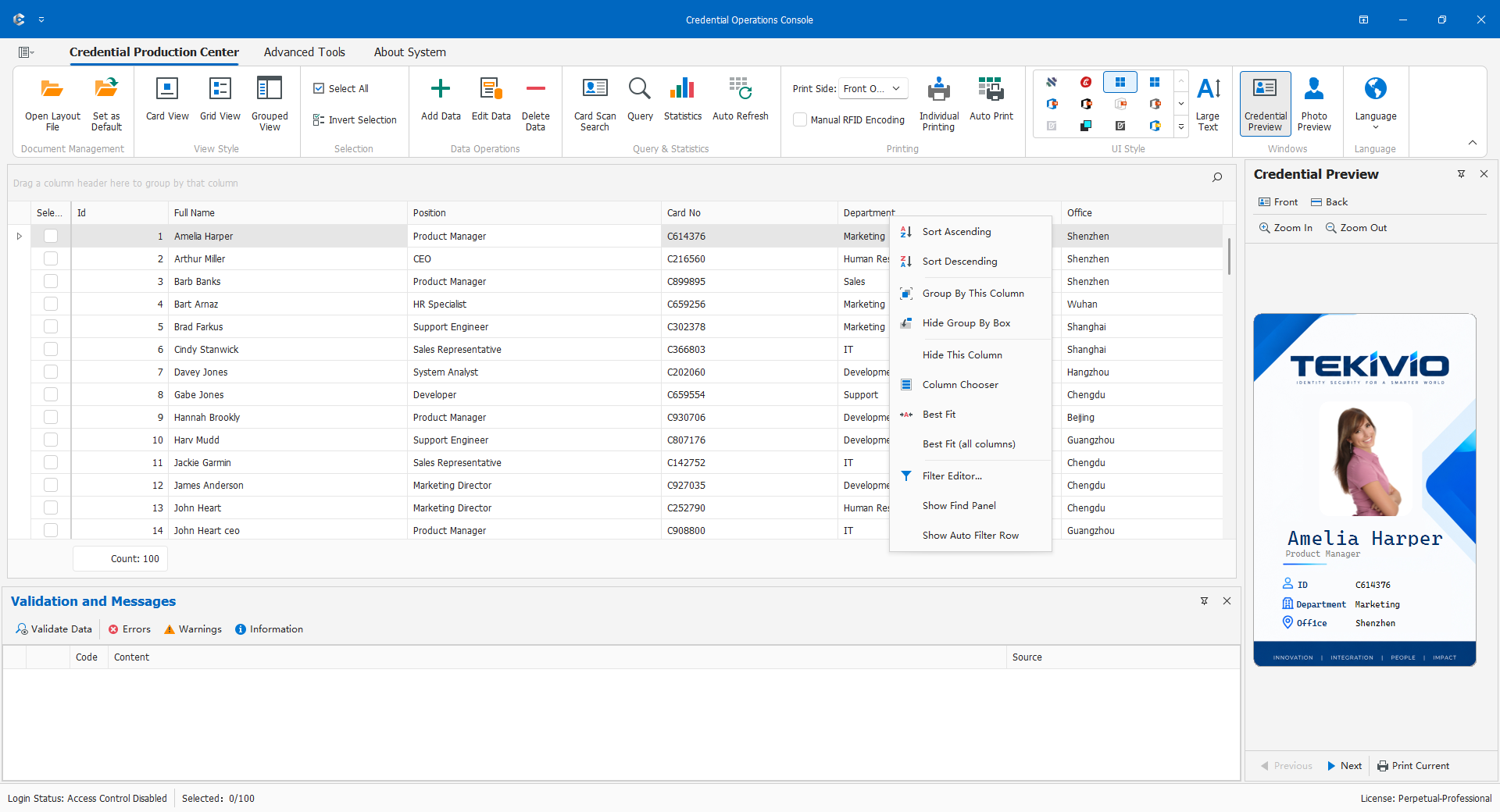
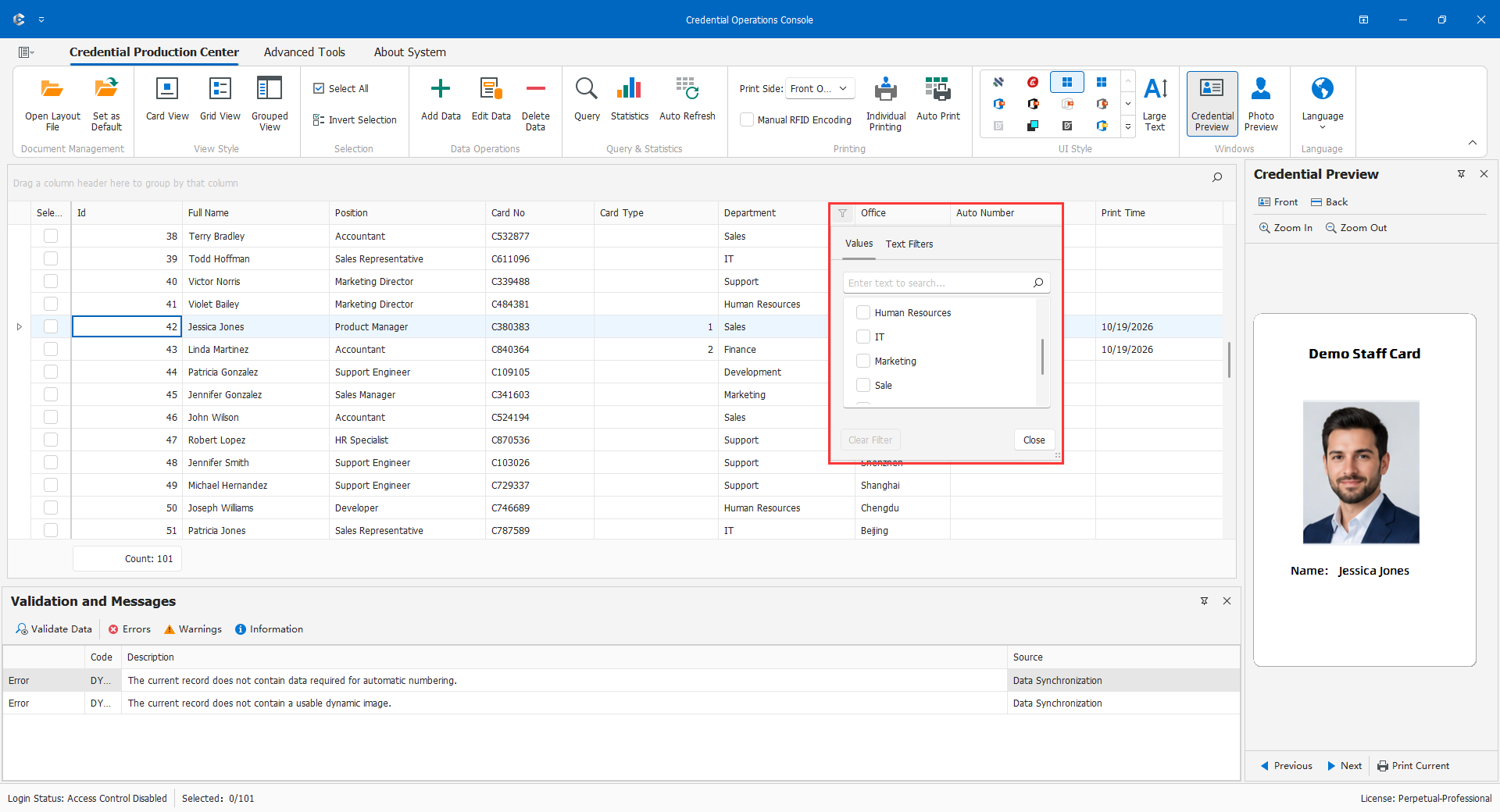
Sorting changes display order. Searching/filtering narrow visible data, and grouping organizes categories. None changes stored records or replaces group-SQL isolation.
Search using a stable identifier, resolving same-name people by number. Inspect column conditions, dates, NULLs, and classifications. Clear obsolete interface conditions before asking about role scope.
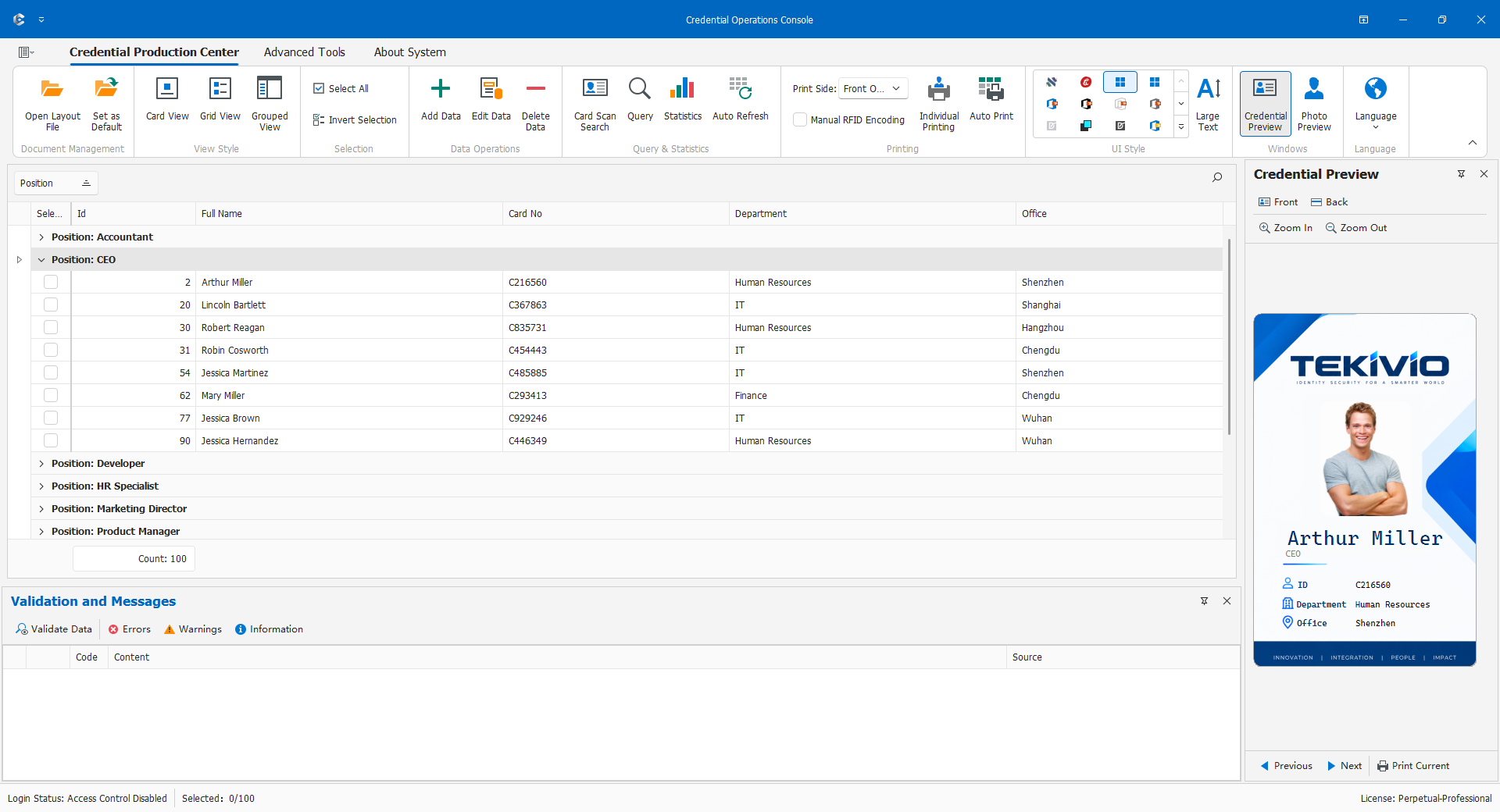
Enable Group Display to apply an existing valid field or select one. Cancelling selection leaves grouping disabled. Choose a group to see its members and return to the all-records item to check the overall allowed scope. Disabling grouping clears its saved grouping configuration, so re-enabling may prompt again.
Department names, categories, and Boolean states are suitable classifications. IDs, ordinary numbers, binary photos, and dates are not general grouping fields. Grouping does not grant other departments' data. Before a batch, recheck conditions and remaining selections; deletion has its own scope.
5.2.6 Personal View Layouts
Grid and Card View layouts are automatically stored separately and associated with user and credential layout. Width/order or card-field arrangement can be restored for the same context.
These files are interface settings, not personnel backups or CDPS designs. Different users/layouts can produce different views. New SQL outputs may no longer fit an old layout; verify fields/version before removing anything. Migrate the user configuration directory through the backup procedure and test with the target account. Copying someone else's layout does not copy permissions.
5.2.7 Refresh and Statistics
Other workstations can change the database while your view is open. Automatic refresh periodically queries and merges changes; consider network load and active edits. End input before refreshing and recheck focus, filters, selections, and important values afterward.
Automatic printing also enables automatic refresh; distinguish their effects. State whether a count represents visible rows, checked rows, query results, or unique people. Multiple cards/photos can create several rows for one person. Reconcile against the business list before reporting or production.