
Static Design Elements
On this page
4.3 Static Design Elements
Static elements provide common content: organization names, logos, instructions, decoration, and fixed codes. Whether content varies by record determines static versus dynamic: a shared numeric telephone number is static, while an individual card number is dynamic.
4.3.1 Static Text
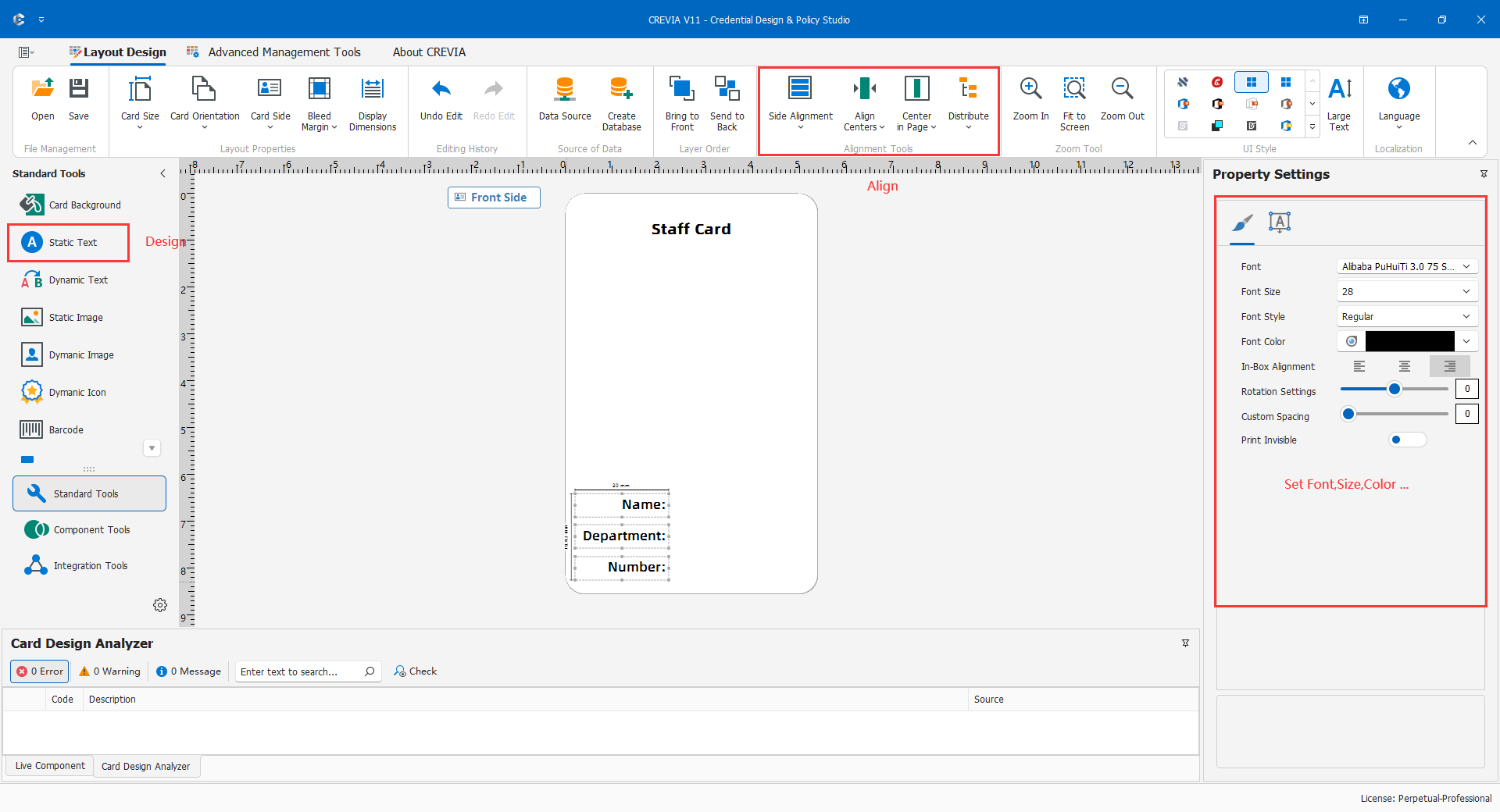
- On the front, create static text and enter "Staff Card".
- Set font, size, color, alignment, and width, leaving a clear gap to the logo.
- Add fixed labels such as "Name:", "Department:", and "Number:", with separate regions for dynamic values.
- On the back, add approved instructions in a separate object and check wrapping, line spacing, and the final line.
- Save, review hierarchy at full-card scale, and test printed readability.
Keep titles clear and concise. Long instructions must remain inside their bounds and away from edges. Screen-readable small type may still be unreadable on the finished card. Separate labels and values simplify maintenance. Verify font availability on destination computers: substitution can change widths and line breaks. Static text must remain unchanged when records change.
4.3.2 Static Images
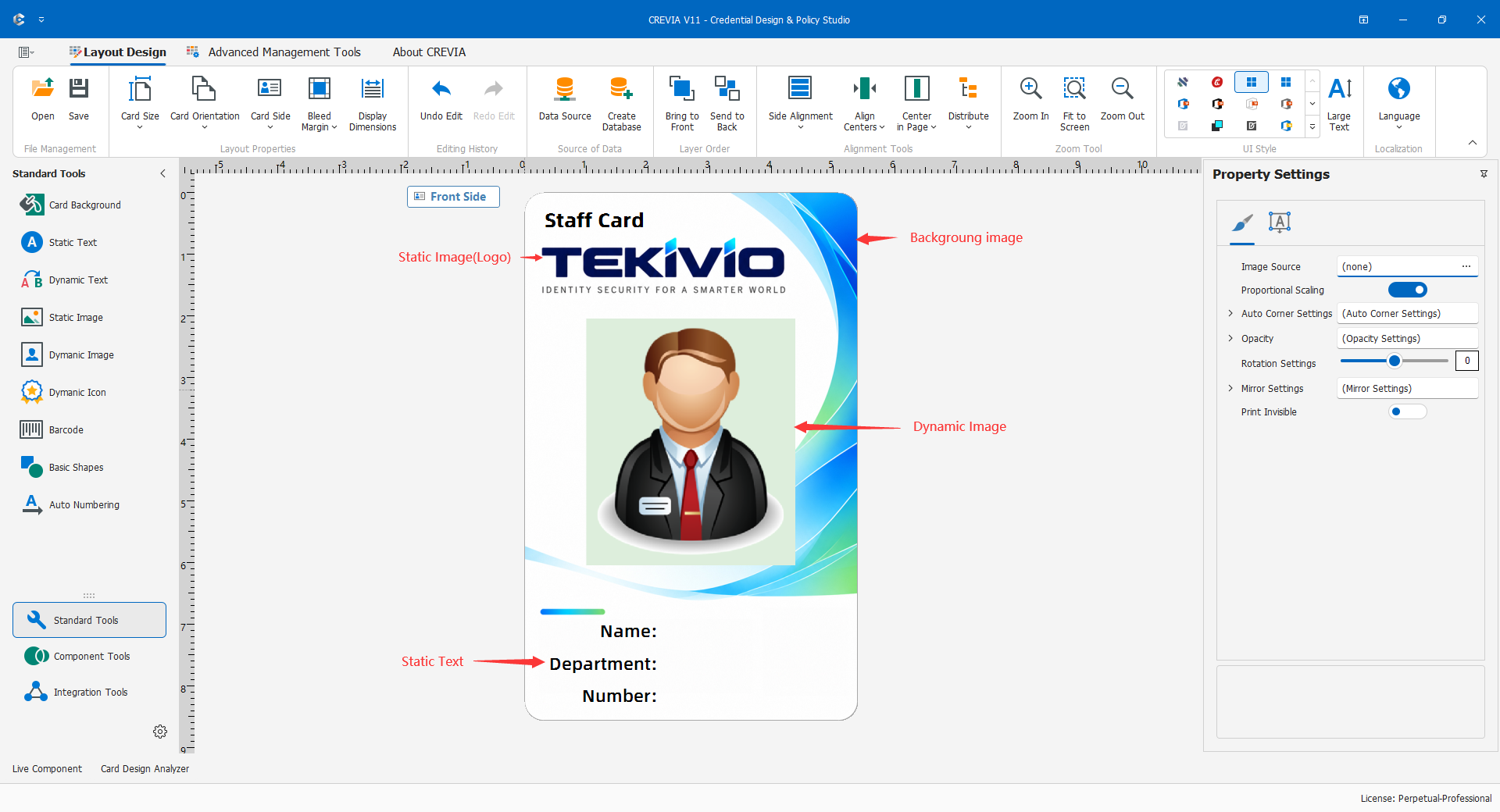
Use static images for common logos and emblems. Obtain clear, approved originals. A transparent logo needs an actual alpha channel; renaming a white-background image does not create transparency.
- Create the image object and load the intended original.
- Choose an appropriate display mode, normally preserving logo proportions. Adjust the frame and inspect clipping or unwanted whitespace.
- Place it near the title and align edges using tools.
- Inspect transparency against the real background, deselect, and check for occlusion.
- Save, reopen, retain originals, and check external dependencies before migration.
Blur usually requires a better original, not a larger object. White blocks usually require checking the image's real transparency.
4.3.3 Shapes
Use lines to separate organization and identity areas, frames around photos, or a light rectangle behind a number. Keep decoration subordinate to identity information.
Create the needed line, rectangle, or ellipse; set geometry, outline color, and thickness; ensure fill does not cover the photo; position background shapes behind text; and inspect edges both enlarged and at full-card scale.
Dense textures behind codes, heavy lines across photos, and crowded frames reduce legibility. Give each shape a purpose and avoid unnecessary objects that complicate maintenance.
4.3.4 Static Barcodes and QR Codes
Static codes repeat the same value on every card, for example a help URL or fixed item identifier. Use dynamic codes for individual credential numbers.
- Select a symbology accepted by the intended reader and business system.
- Enter fixed content, for example
https://example.com/help. Replace this demonstration URL with an approved production address. - Set size and position and retain sufficient quiet zones. Do not squash barcodes or stretch QR codes non-proportionally.
- Inspect the screen, print a sample, scan it with the actual reader, and compare the result character by character.
Quiet zones are part of readability, not disposable decoration. Tiny codes and rounded-corner trim can prevent scanning. Opening a URL does not authenticate the credential; the back-end system still needs validation.
4.3.5 Backgrounds and Dynamic Backgrounds
Use a fixed background for shared artwork and a dynamic background only when business categories require it. Keep names, photos, and codes legible.
For a fixed background, check color or image, proportions, coverage, and clipping before foreground text. Keep artwork clear of photo/code regions. Use independent text objects for organization names likely to change, and check bleed requirements with 4.2.1.
For dynamic backgrounds, first confirm the category source and stored values, then map them using the available tool. Test every category, missing values, and unknown categories. When classification changes, recheck backgrounds, dynamic symbols, and drop-downs together. Visual distinctions do not replace permissions or identity checks.
Check that fixed titles, logos, and static codes remain unchanged across records; backgrounds preserve readability; and artwork originals are retained. Use a fixed background if no clear classification requirement exists.