Credential Preview and Printing
On this page
- 5.6 Credential Preview and Printing
- 5.6.1 Credential Preview
- 5.6.2 Photo Preview
- 5.6.3 Print Current
- 5.6.4 Sequential Printing
- 5.6.5 Batch Printing
- 5.6.6 Duplex Printing
- 5.6.7 RFID Encoding and Integrated Production
- Fully Automatic Versus Manual RFID Encoding
- Procedure
- Lookup Versus Writing
- 5.6.8 Automatic Printing
- Prerequisites and Scope
- Rule Settings
- Example: Print Approved Pending Records
- Start and Monitor
- Pause, Modify, and Finish
- Duplicates and Failures
5.6 Credential Preview and Printing
Separate screen preview, task submission, physical output, encoding success, and collection by the recipient. One success message cannot establish the entire workflow.
5.6.1 Credential Preview
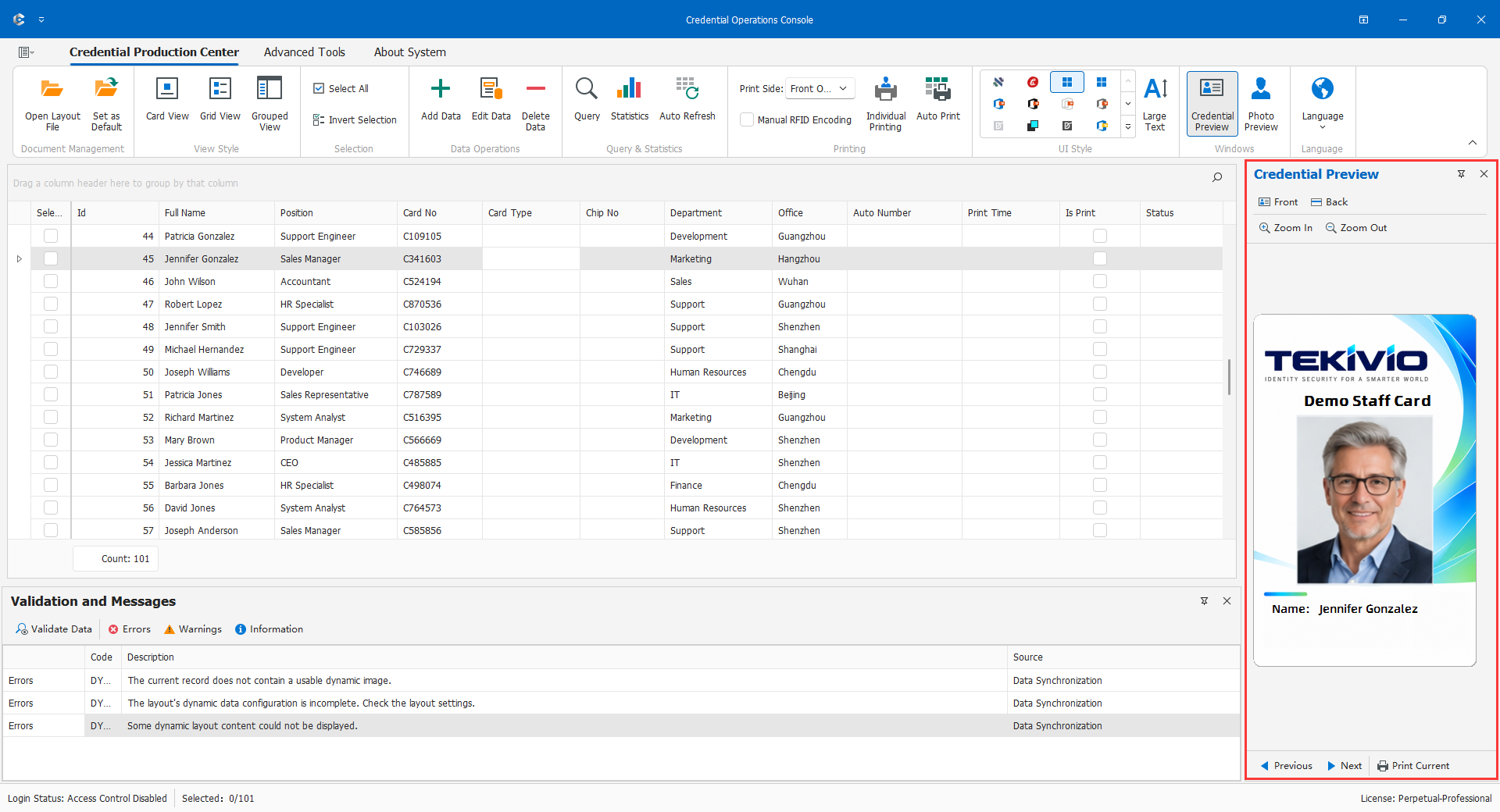
Inspect front/back and navigate previous/next within the current displayed range. Zoom affects viewing only. Check names, identifiers, validity, photos, symbols, codes, long values, missing fields, proportions, and multilingual characters. Physically scan codes.
Preview-side switching and the job's Print Side are separate settings. Looking at the back does not select back-only output. Return to CDPS to move design elements.
5.6.2 Photo Preview
Compare both previews before printing: one checks face/clarity, the other checks crop/background. Their aspect ratios may differ. Temporary photo changes need deliberate task verification and separate official saving if required. Do not depend on per-focus temporary adjustments for a large batch; prepare stable sources and reload. Stop output for missing or wrong-person images.
5.6.3 Print Current
This uses the focused record and normal output, not other checked people or saved imposition settings. Focus and verify the person; choose front/back/duplex, printer, stock, orientation, and copies; print; then inspect physical content, size, edges, color, and scanner readback.
After reported success, configured print triggers run. If printing completes but a trigger fails, do not print again merely to repair status. Inspect the queue, physical card, and database first.
5.6.4 Sequential Printing
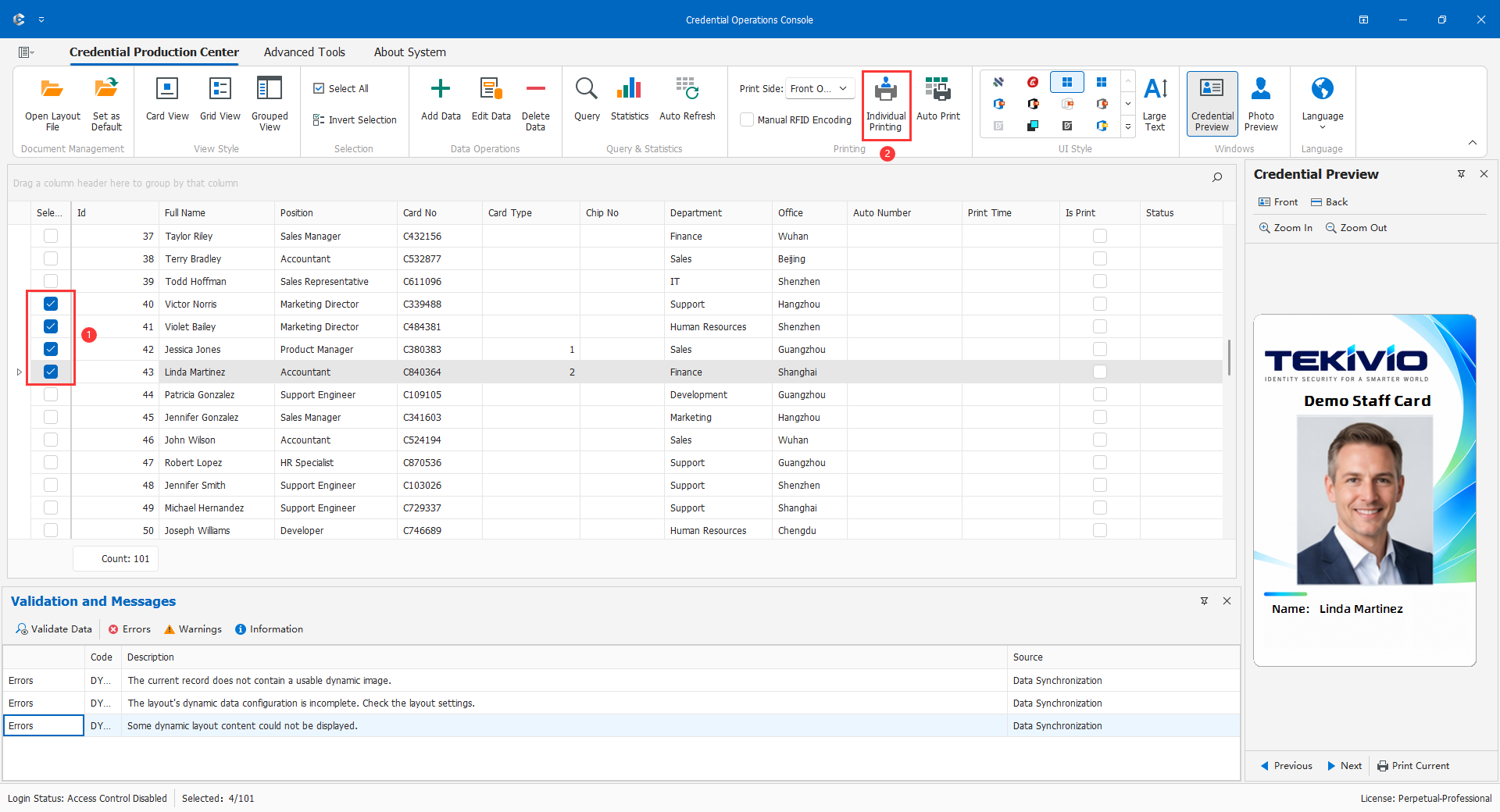
Sequential printing processes different selected records, not repeated copies of one person. Confirm search/filter/group, check the intended people, inspect beginning/middle/end previews, choose side/device, and start. Reconcile physical order, count, exceptions, and trigger results.
The current path takes checked rows in the current displayed data, in actual view order. Hidden/excluded rows are not automatically included. Verify sorting rather than inferring sequence from selection count.
5.6.5 Batch Printing
Batch work is implemented through Sequential Printing, Imposition Printing, and rule-based Automatic Printing, not necessarily a separate identically named button. Distinguish people, copies, faces, and physical pages.
Prepare stock/device and trial a few records. Do not change involved people/photos during a job. For jams, empty stock, disconnections, or partial failures, preserve the batch list and reconcile queue/output before choosing incomplete records for reprint. Never resend the entire batch without distinguishing completed cards.
At completion reconcile personnel, physical output, trigger failures, and stored status. Post-task triggers do not certify each physical card's quality.
5.6.6 Duplex Printing
Confirm the layout back, device/driver capability, and flip direction. An undesigned back, manual flipping, and automatic duplex are distinct. Test clear front/back orientation markers, person pairing, and positioning before a batch.
The print path follows Front, Back, or Duplex selection. A visible Automatic Duplex entry does not promise automatic flipping on every printer. Manual flipping needs an accepted equipment procedure to prevent mismatched people. Two-up and free imposition support single-sided output only; a separately verified reverse-side job is not automatic duplex imposition.
5.6.7 RFID Encoding and Integrated Production
RFID depends on chip type, reader/writer, protocol, format, and database mapping. It is not a printed barcode. Reading a UID to find a person is not writing business data.
Fully Automatic Versus Manual RFID Encoding
Fully automatic in-printer encoding normally needs the manufacturer's SDK and encoding module to coordinate feed, write, verify, print, eject, and next-card commands. A graphics print driver does not necessarily control the internal transport/encoder.
Manual RFID encoding does not rely on the printer manufacturer's SDK or control its internal encoder. After each card prints, the operator takes that card and presents it to the writer; successful completion automatically advances to printing the next card. Manual refers to handling/presenting the card, not repeatedly selecting people or manually submitting each job. It is attended, semi-automatic continuous production.
Procedure
- Verify the list, sequence, identities, chip data, printer, compatible writer/protocol/drivers, and write permissions. Trial with test cards.
- Enable Manual RFID Encoding and start the approved workflow.
- Wait for the current card's actual output and verify its printed identity.
- Present that exact card to the writer, keeping unfinished cards separate.
- Confirm successful encoding; the software prints the next person's card automatically. Repeat and reconcile the completed batch.
Do not hand over a printed but unencoded card or manually start another person's job while encoding is pending. SDK independence does not mean a writer is unnecessary.
Lookup Versus Writing
Card lookup uses the layout's module, port, baud, and protocol configuration to read a chip number and find a record. Manual encoding writes the current person's data and then continues printing. A successful UID read is not write verification, and an arbitrary USB reader is not necessarily a compatible writer.
For a jam, wrong card, failed write, or unclear result, pause and reconcile current person, physical card, chip contents, and task position. Verify target, payload, appropriate readback, printed identity, and business update independently. Before replacement/retry, account for the old card to avoid multiple valid cards for one identity.
Figure 5.6-3. Compare SDK-controlled feed/write/verify/print/eject/next with print one/operator presents card/write complete/automatic next. Identify human actions and person-to-card pairing; distinguish lookup from writing. Use test cards and hide keys and real card numbers.
5.6.8 Automatic Printing
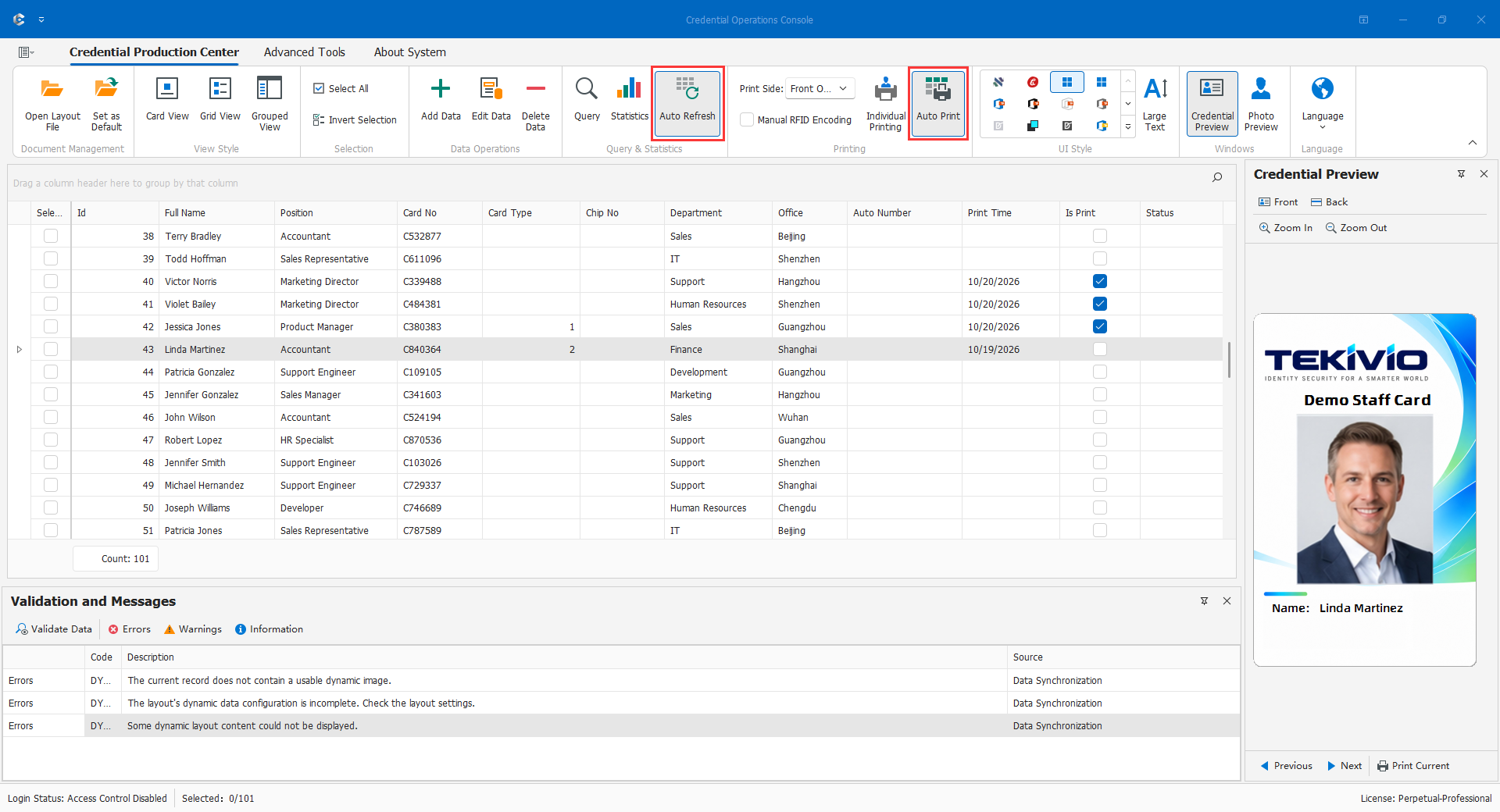
Automatic printing checks records against saved rules and submits matching records as ordinary production jobs. It is suitable for an approved pending-production state, not unattended issuance.
Prerequisites and Scope
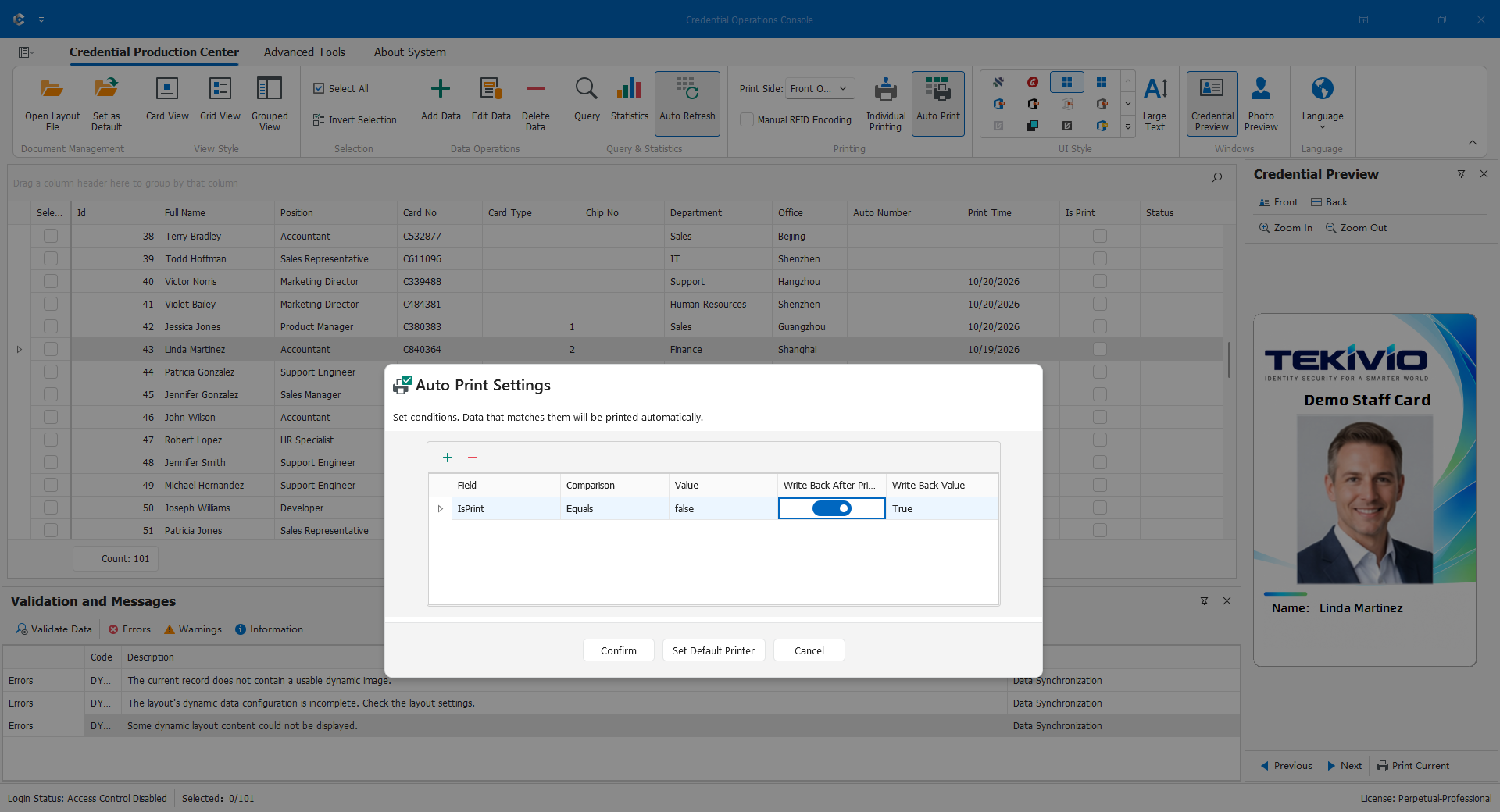
Check layout, user, license, print permission, connection, printer, and locating primary keys. Writeback requires a recognizable writable main-table field tested in a demonstration database. Verify Print Current first, then prepare one matching and one nonmatching sample.
The feature checks matching records in the current displayed range, not selection checkboxes. Search/filter/group and group SQL affect scope. Already-existing matching records can print after enabling; it is not limited to newly added people.
Rule Settings
| Setting | Meaning |
|---|---|
| Field | Stable current business field, not photo, temporary selection, or internal helper columns. |
| Comparison | Greater than, less than, equal, or contains; choose according to actual content. |
| Value | A verified comparison representation for text, numbers, dates, or Booleans. |
| Post-print writeback | After task success and print triggers, attempts to update the same-named main-table field referenced by that rule, not an arbitrary different field. |
| Writeback value | A type-compatible result; shortcuts such as current time or true are not valid for every field. |
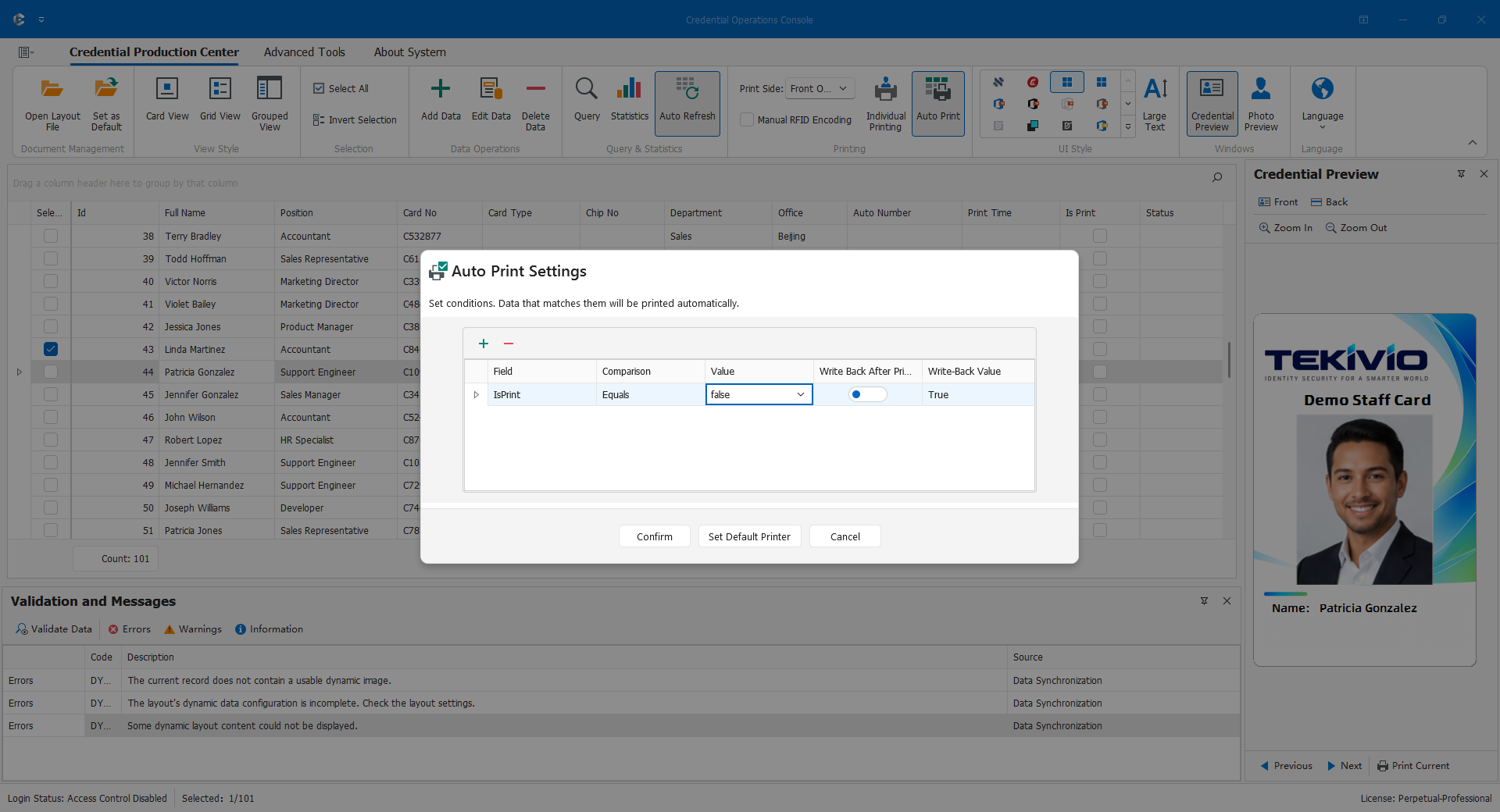
All rules combine with AND. Equality preserves leading zeros (001 differs from 1); text comparisons are case-insensitive. Contains is substring matching. Greater/less attempts numeric/date interpretation and can fall back to text, so avoid mixed formats. Database NULL does not satisfy rules, and a blank target is not an IS NULL test. Contains with a blank target can match many non-NULL values.
Example: Print Approved Pending Records
| Field | Comparison | Value | Writeback | New value |
|---|---|---|---|---|
| ProductionStatus | Equals | Pending | On | Submitted |
| ReviewResult | Equals | Approved | Off | Not used |
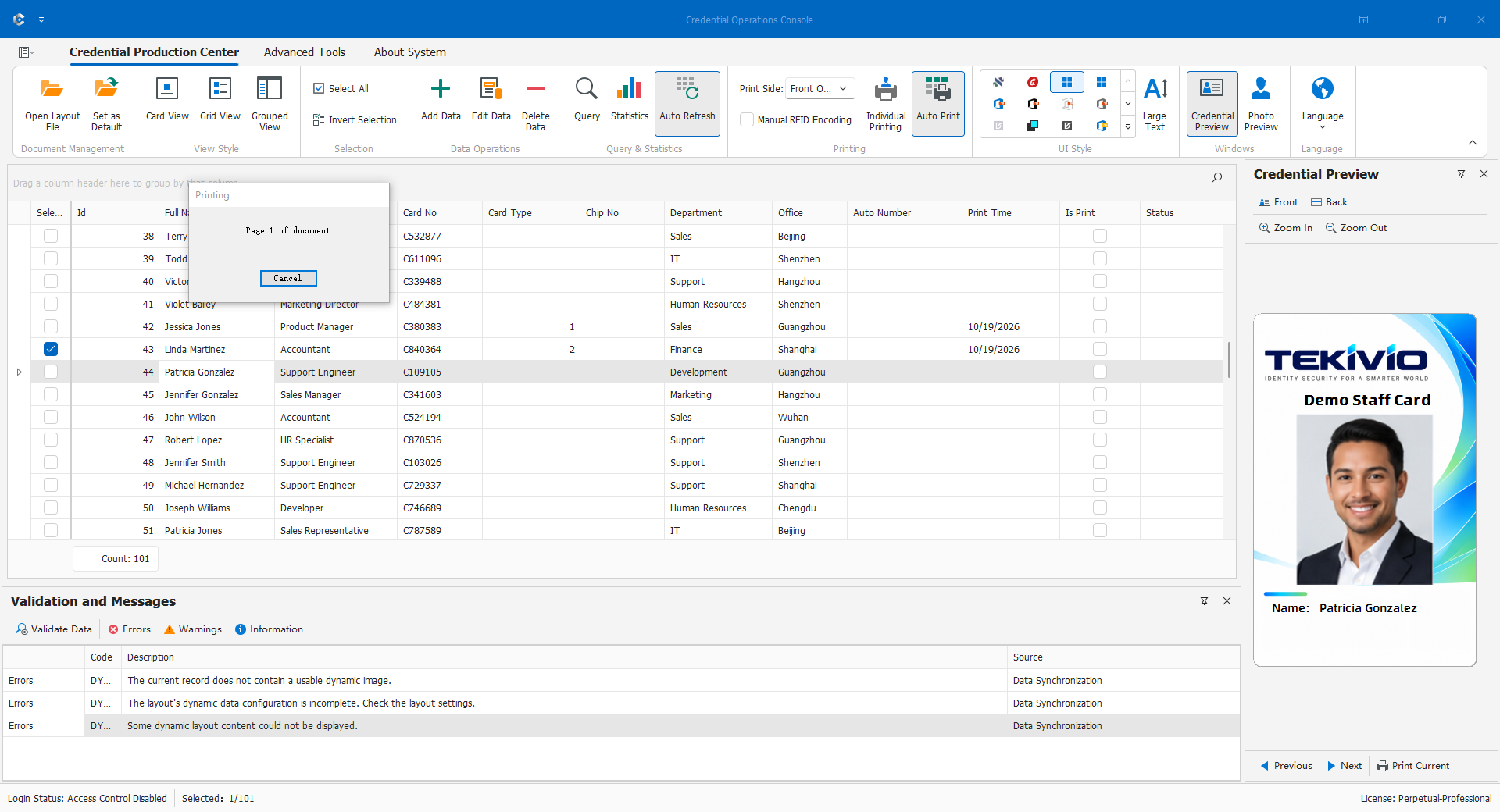
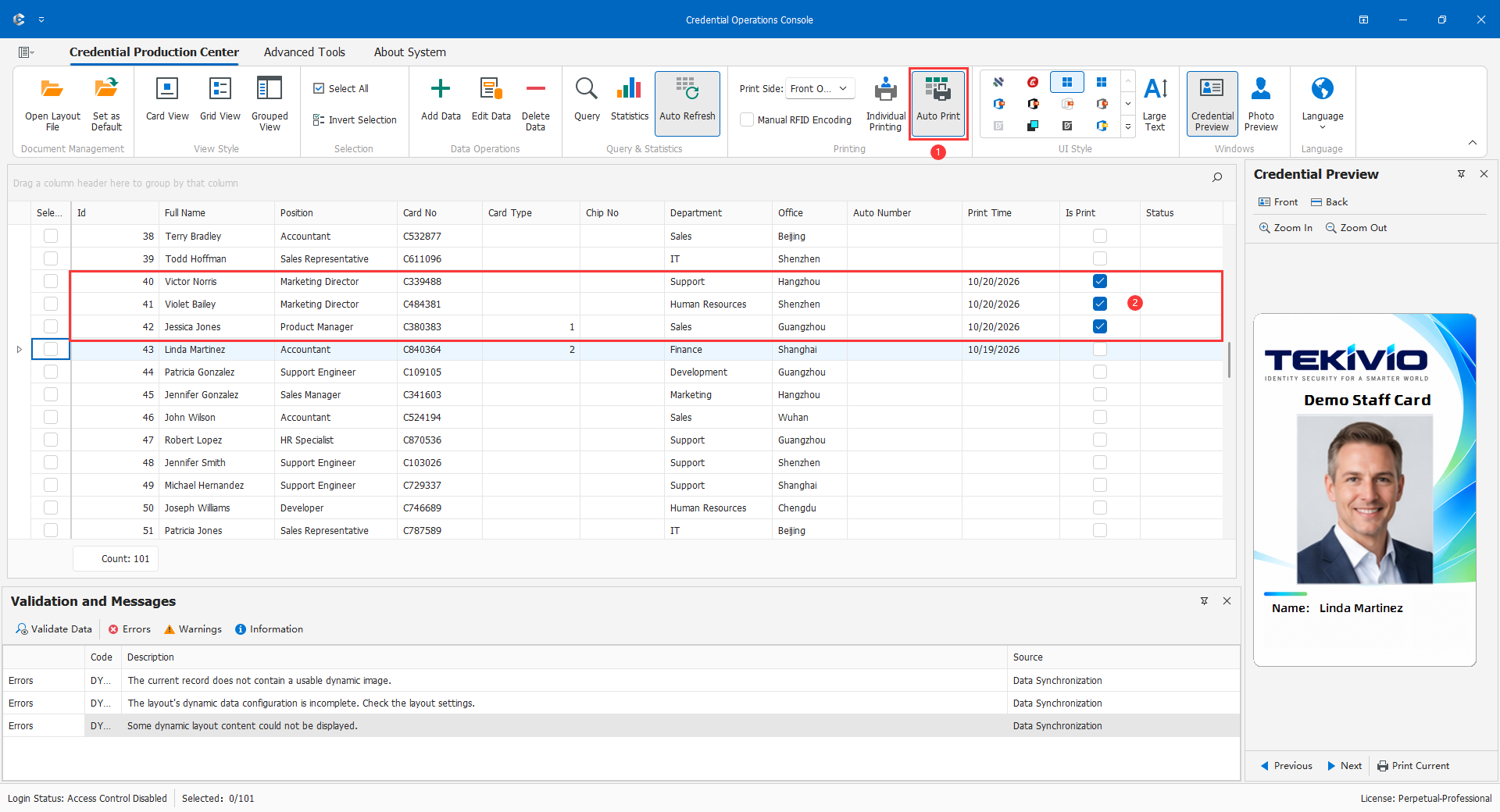
These are fictitious text fields, not required schema. Person A is Pending/Approved; B is Pending/Rejected. Confirm both are visible and ProductionStatus is writable. A should print, B should not, regardless of checkbox selection. Inspect A's card/queue and reread Submitted so it no longer matches. Physical quality, chip verification, and recipient collection remain separate. Submitted does not mean Collected.
A verified Boolean pending flag can similarly change True to False. Use layout print triggers for additional time/location fields instead of treating rule writeback as an arbitrary multi-field updater.
Start and Monitor
- Verify the main Print Side; automatic printing uses normal output, not imposition.
- Open Windows Printers & Scanners through Set Default Printer and check stock, orientation, and copies. This is a system setting, not one printer per rule.
- Confirm at least one valid rule and save for the current user. Cancel/close does not enable the new task.
- Confirmation also enables automatic refresh. Periodic reads merge changes and test currently displayed matches, without per-record clicks or a print-settings dialog every cycle.
- Watch the initial output and writeback, then remain in attendance. Do not casually change scope, sorting, status, or device while running.
Timing depends on database/network and previous work; it is not a strict delay or real-time messaging service. An enabled switch does not prove ongoing connectivity or successful writeback.
Pause, Modify, and Finish
Disable Automatic Printing before changing rules or project/user/database/printer. Reconcile submitted work before reopening settings. Disabling stops future automatic processing but does not disable Automatic Refresh or retract Windows/device queue jobs. Check both switches and cancel queue tasks separately under the device procedure.
Re-enabling clears the current run's processed set and reconfirms rules. Do not repeatedly toggle while diagnosing: still-matching records can print again.
Duplicates and Failures
In-memory suppression relates to primary keys, rules, and values; it is not a permanent issuance ledger or multi-workstation single-consumer guarantee. Restarting, re-enabling, or changing values can allow repeat output. Use verified persistent state and batch records, and do not let several stations consume the same pending population without a business safeguard.
| Symptom | Response |
|---|---|
| Enabled but no output | Check refresh, scope, every rule, NULLs, keys, and device; do not first remove all conditions. |
| Unchecked people print | Pause and inspect scope/rules; selection is not the criterion. |
| Status unchanged | Reconcile task and database, writable same-named field, compatible value, and triggers; do not reprint only to fix status. |
| Cards emerge after disabling | Inspect already-submitted queue/device jobs and actual cancellation. |
| Duplicates after restart | Verify persistent writeback and exit from matching conditions, not previous memory state. |
| Jam, disconnect, unknown result | Pause, reconcile completed/queued/incomplete people, and reprint only confirmed failures. |
Print triggers run before automatic-rule writeback. A failed post-action can leave submitted output with stale status, while the current run still marks the record processed. No immediate duplicate is not proof of successful writeback: reread and reconcile.